Create support tickets in Gorgias
The create support ticket action adds support tickets in Gorgias. Under the hood, this action calls the create ticket API endpoint.
Adding the create support ticket action in the formspree.json file has the same effect as adding the Gorgias plugin in the Formspree dashboard. See the Gorgias plugin help article for more information.
Get your API Token
You’ll need to add the subdomain of your Gorgias account, the connected email, and the API Key.
To get your API key follow these steps:
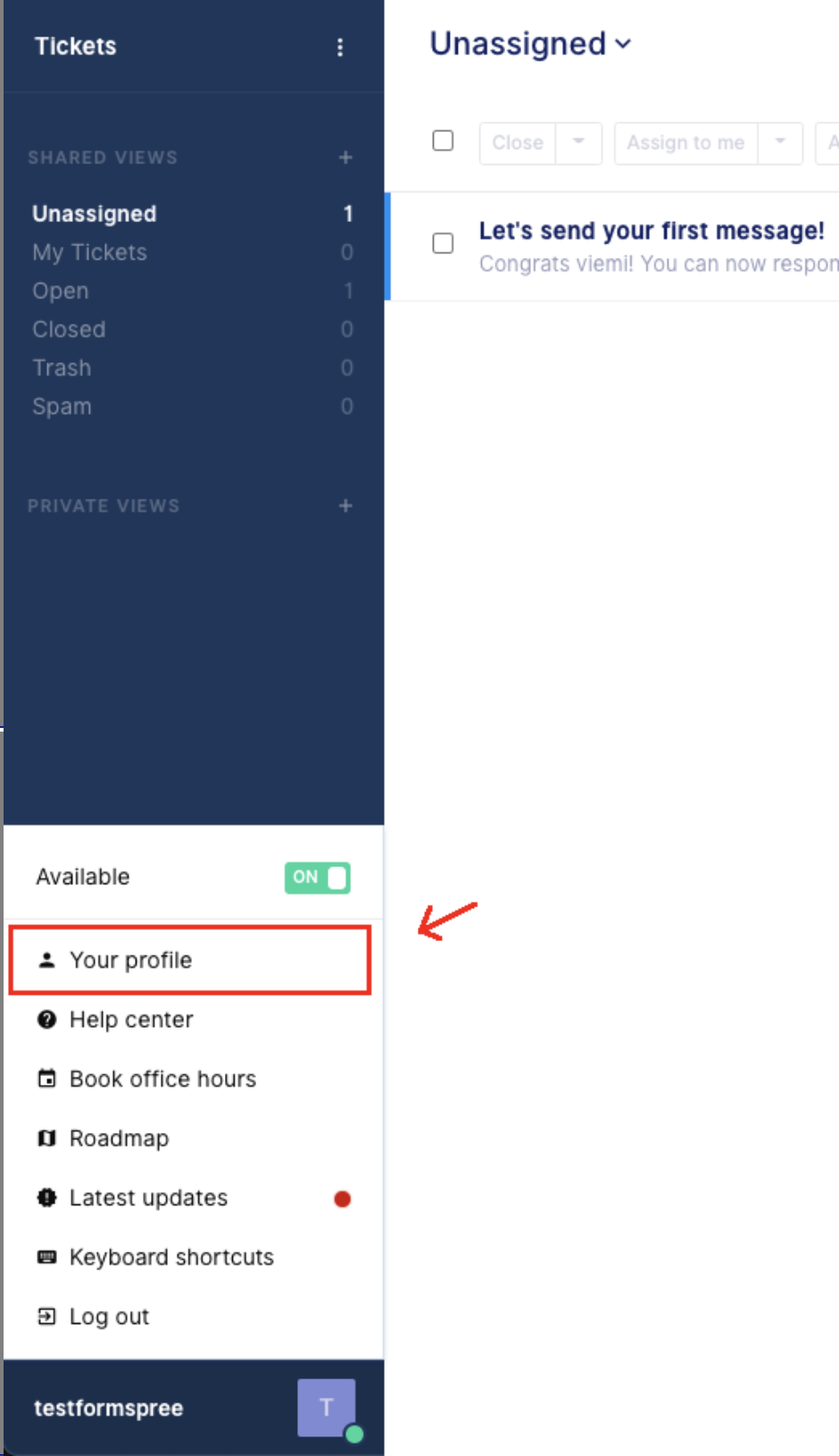
1. Log in to your account and in the left bottom corner click the bar with your name, then select your profile
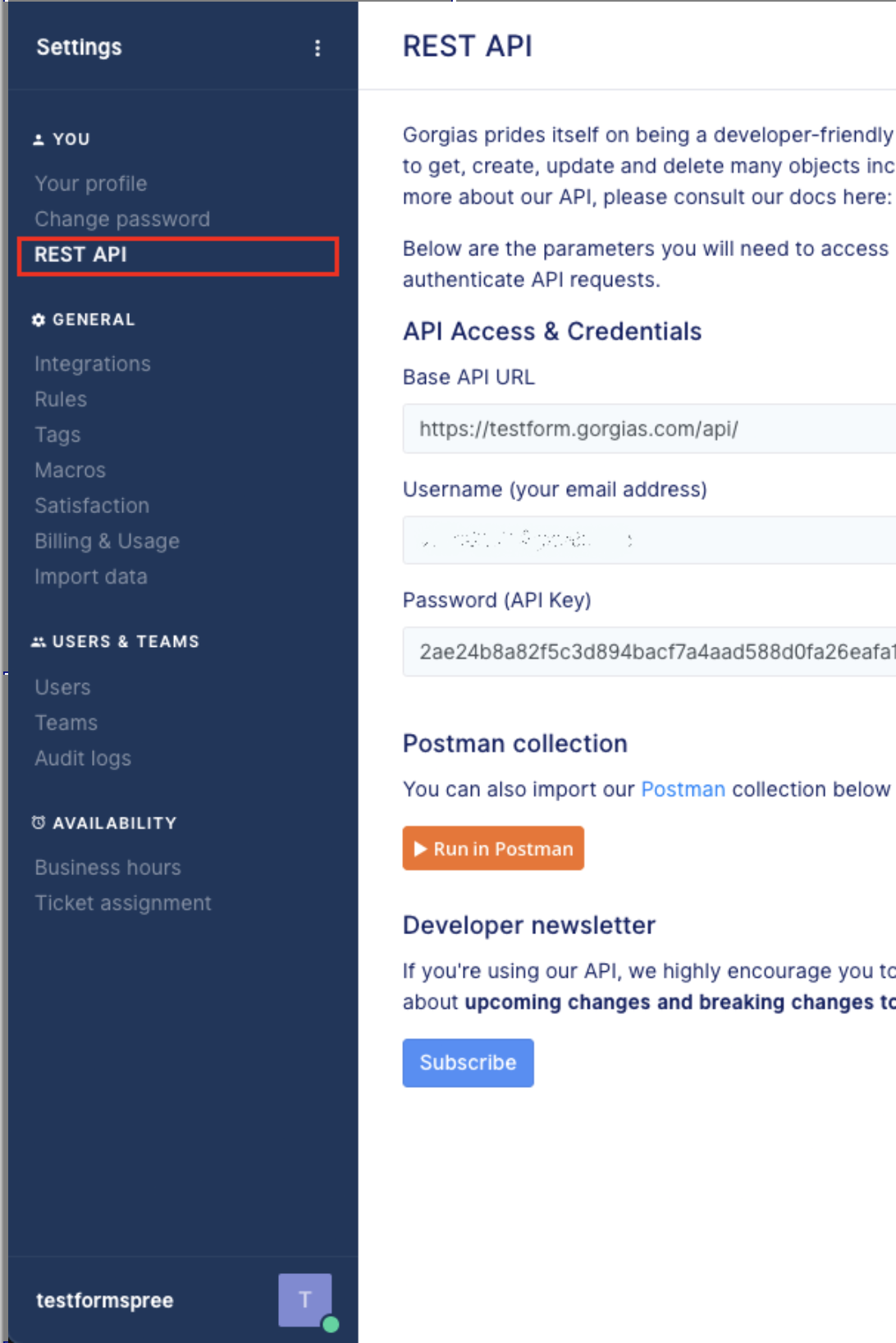
2. At the top of the sidebar find Rest API and click it:
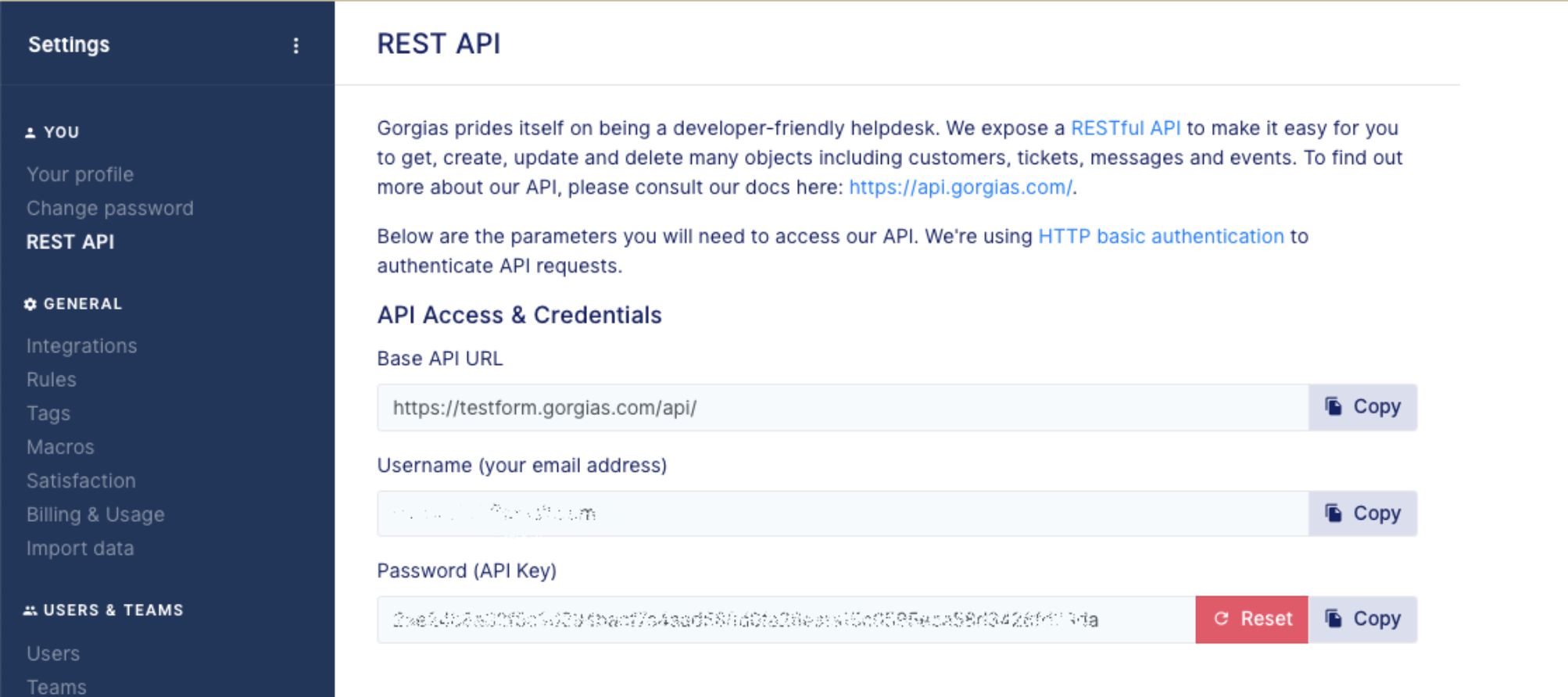
3. Copy your subdomain (without https and gorgias.com), your username and password.
Formspree.json configuration
| Key | Type | Description |
|---|---|---|
app | String | Must be gorgias |
type | String | Must be createSupportTicket |
apiKey | String | Your API key (must be a $env variable reference, required) |
subdomain | String | Your Gorgias subdomain (without .gorgias.com or https) |
email | String | Your Gorgias connected email |
Example
{
  "forms": {
    "support": {
      "name": "Support Form",
      "actions": [
        {
          "app": "gorgias",
          "type": "createSupportTicket",
          "apiKey": "$GORGIAS_APIKEY",
          "subdomain": "testformspree",
          "email": "test@formspree.io"
        }
      ]
    }
  }
}
Validation rules
The create support ticket action adds the following submission validation rules implicitly:
| Field | Validation Rule |
|---|---|
email | Required |
email | Type is email |