Adding a custom reCAPTCHA v2 key
Available on: All plans
Sometimes you want the spam protection benefits of a reCAPTCHA, but you don’t want to redirect your users to a Formspree-hosted page. You can provide a custom reCAPTCHA key on your form’s settings page and embed the reCAPTCHA directly on your form. We’ll then use your reCAPTCHA key when communicating with the reCAPTCHA server to authenticate the client-side token.
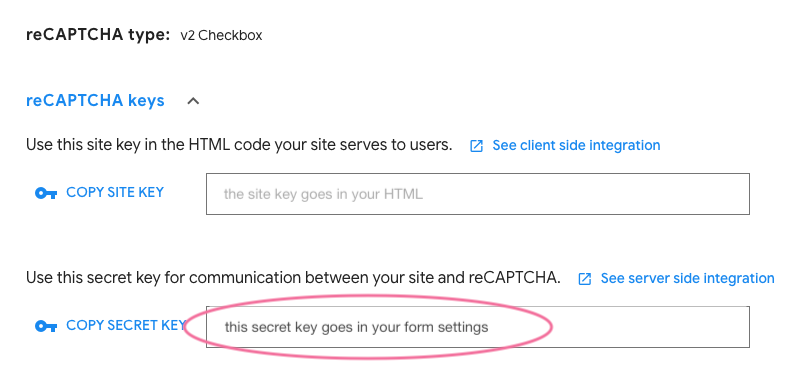
To get started, visit the reCAPTCHA admin console. Create a new key (or use an existing one) and select a v2 reCAPTCHA. Add your domain and then click Submit. You’ll be presented with a site key and a secret key.
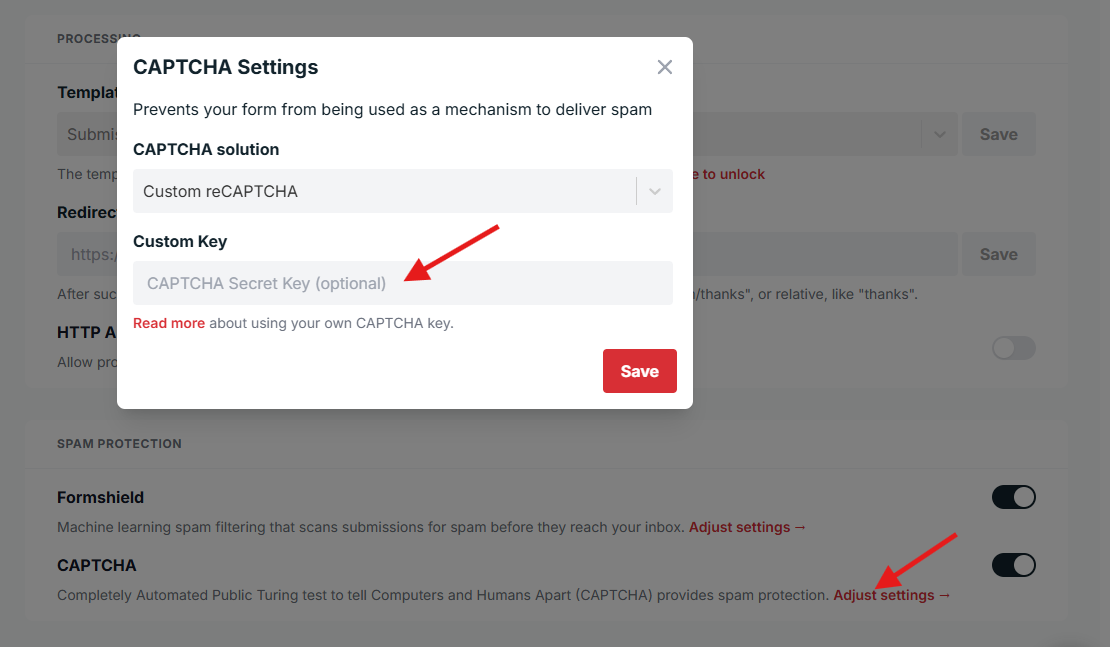
Now visit the Settings tab of your Formspree form, and make sure that CAPTCHA is enabled. Click “Adjust settings”, select “Custom reCAPTCHA” under CAPTCHA solution, and paste your custom key in the provided field:
The final step is to add the reCAPTCHA widget to your own site. In a standard form setup, you can add it like so:
<html>
  <head>
    <title>reCAPTCHA demo: Simple page</title>
    <script src="https://www.google.com/recaptcha/api.js" async defer></script>
  </head>
  <body>
    <form action="https://formspree.io/f/{form_id}" method="POST">
      <input type="email" name="email" placeholder="email@example.com" />
      <div class="g-recaptcha" data-sitekey="your_site_key"></div> <!-- replace with your recaptcha SITE key not secret key -->
      <br/>
      <input type="submit" value="Submit">
    </form>
  </body>
</html>
If you’d like to do something different, the Google developers page for reCAPTCHA provides a thorough explanation for different ways to implement the reCAPTCHA. If you use your own field, we will look for a field titled g-recaptcha-response (the default name of the field) so please don’t overwrite it to a different name!
If you want to make the reCAPTCHA field a required field you can using javascript and CSS, the following example will trigger the field to be required using HTML5 validation.
// javascript
window.onload = function() {
  var el = document.getElementById('g-recaptcha-response');
  if (el) {
    el.setAttribute('required', 'required');
  }
}
/* CSS */
#g-recaptcha-response {
display: block !important;
position: absolute;
margin: -50px 0 0 0 !important;
z-index: -999999;
opacity: 0;
}