Send submission to Google Sheets spreadsheet
Adding the Google Sheets action in the formspree.json file has the same effect as adding the Google Sheets plugin in the Formspree dashboard.
Get your credentials
To use the Google Sheets plugin through CLI we need to create a service account in the Google Cloud console.
1. Create a service account
Visit the Google Cloud Console ensuring that you are signed into the correct Google account. In the top right you’ll see a list of projects.
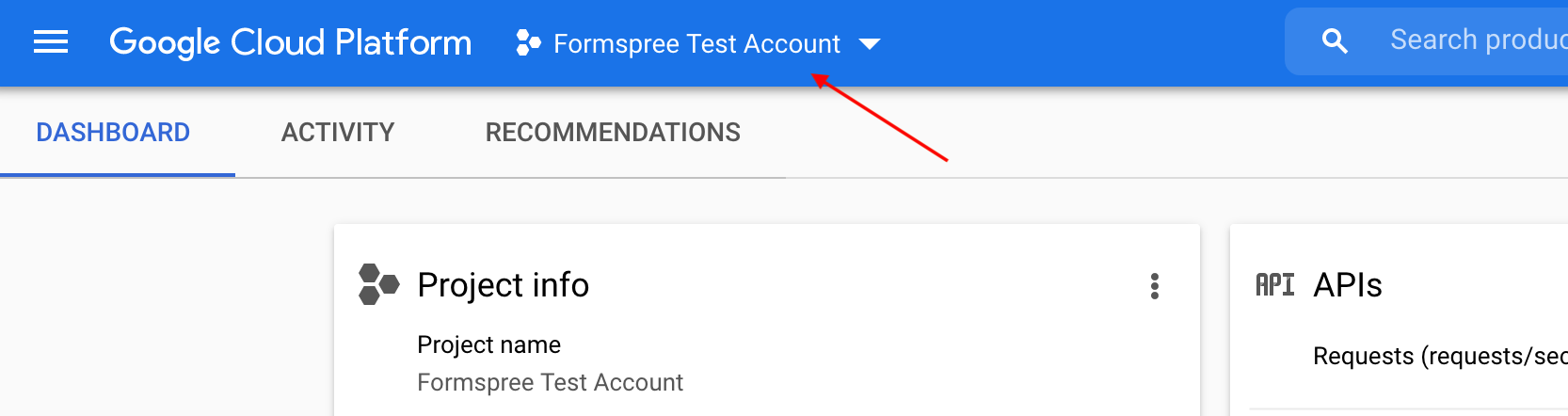
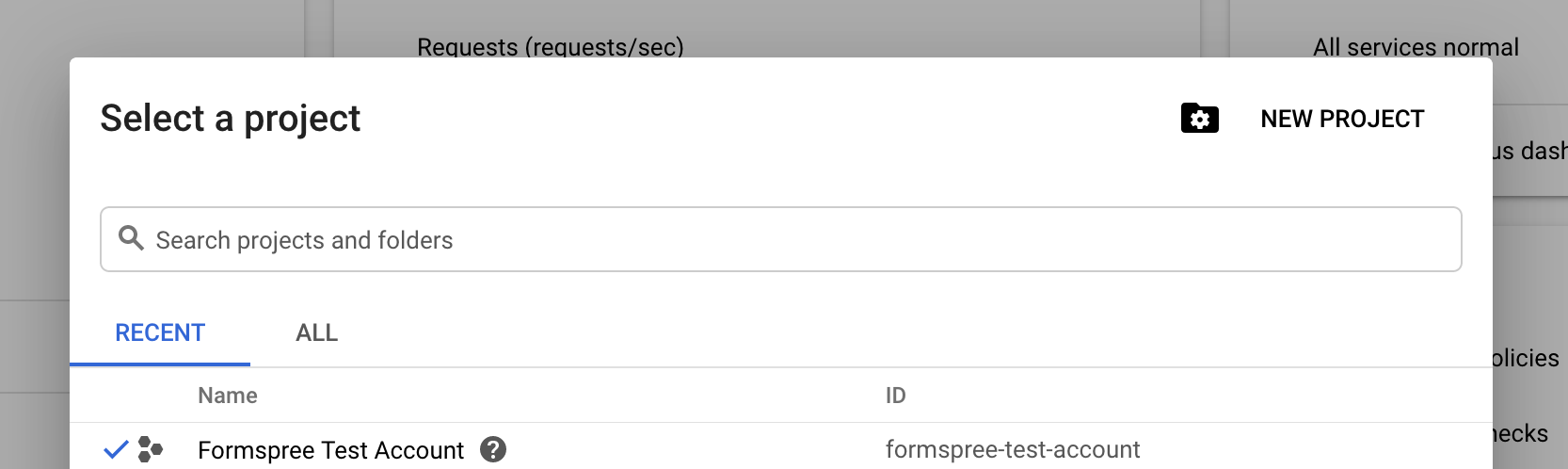
If you already have a project, click the dropdown containing your project name, such as Formspree Test Account. If you don’t have a project, it will appear differently. Clicking on the dropdown will show a modal with the New Projects option.
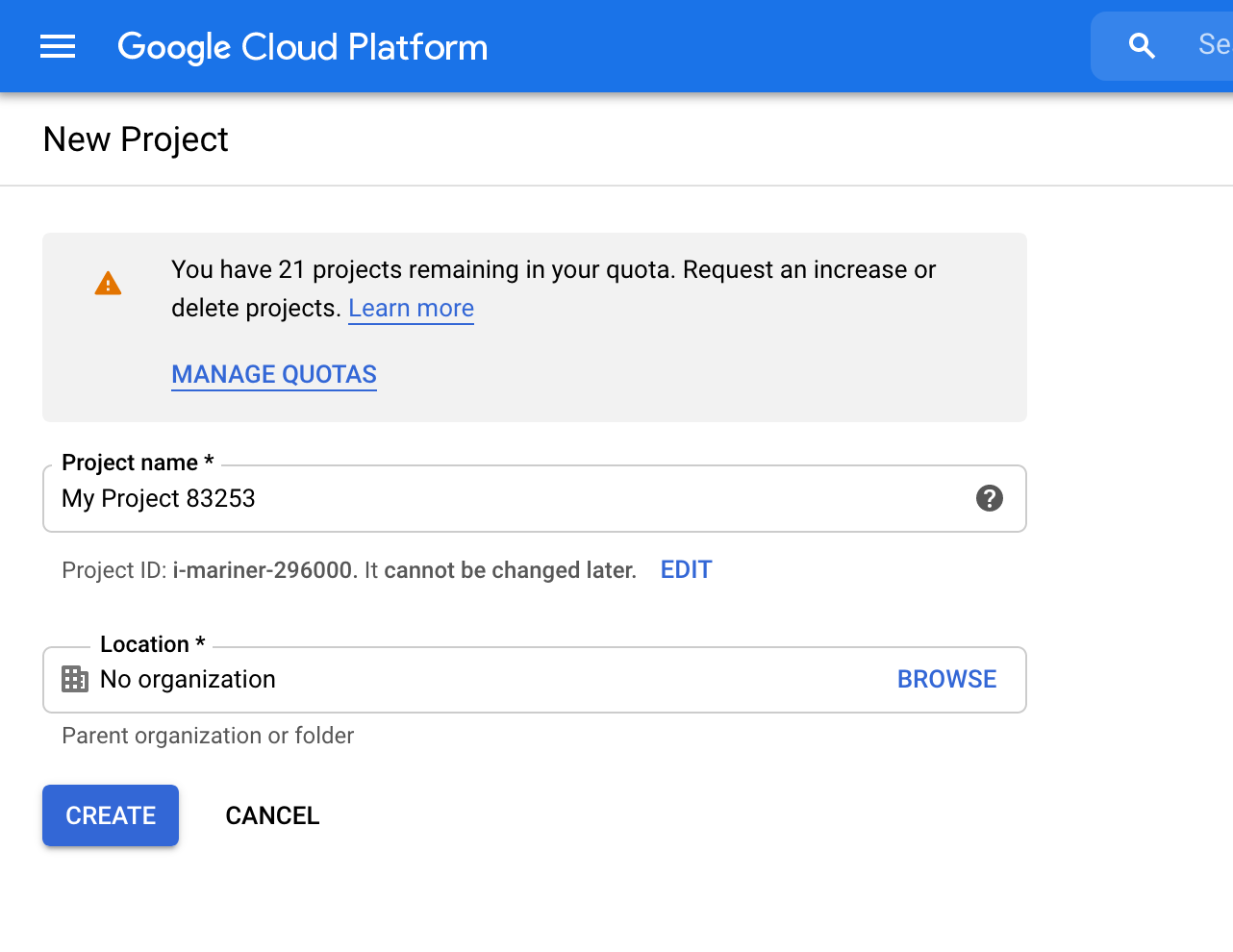
Give a project name and create it
2. Create a service account
Access the service account option by searching on the search bar or in the side menu. If you have more than one project, you have to specify which project you want to use.
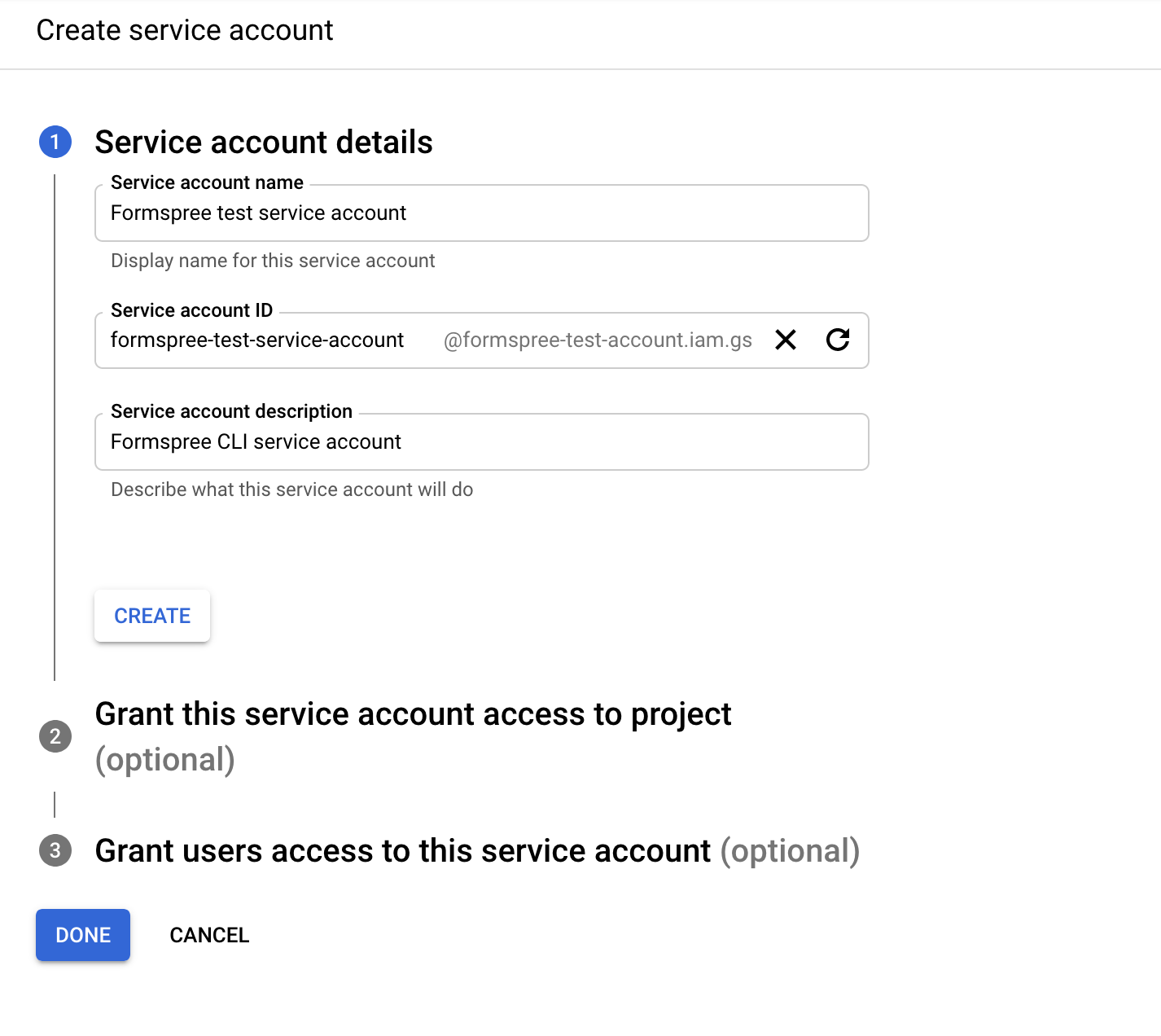
Click on Create Service Account.
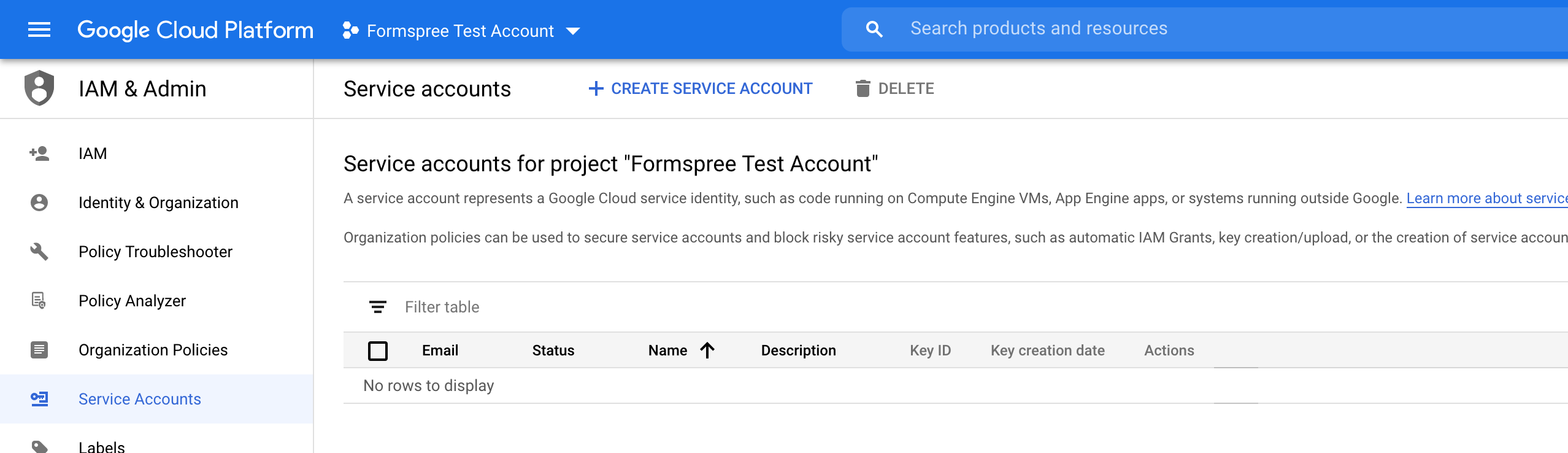
Add a service name and description and click Done.
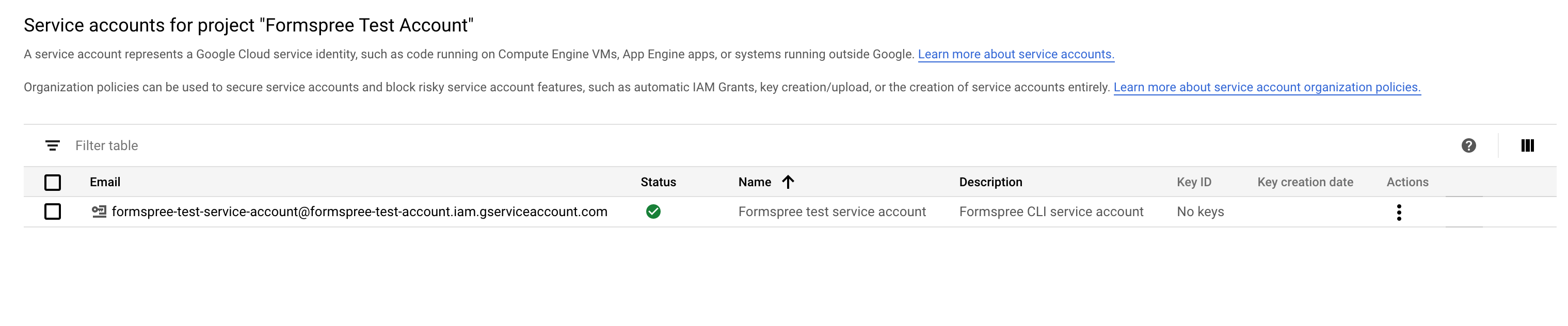
You should see the account listed in the dashboard. We’ll need the email account in the table for the formspree.json file.
3. Getting your private key
On the service account dashboard click on the Actions column of your last step created account row. Then click on Create Key, select the JSON option, and click Create.
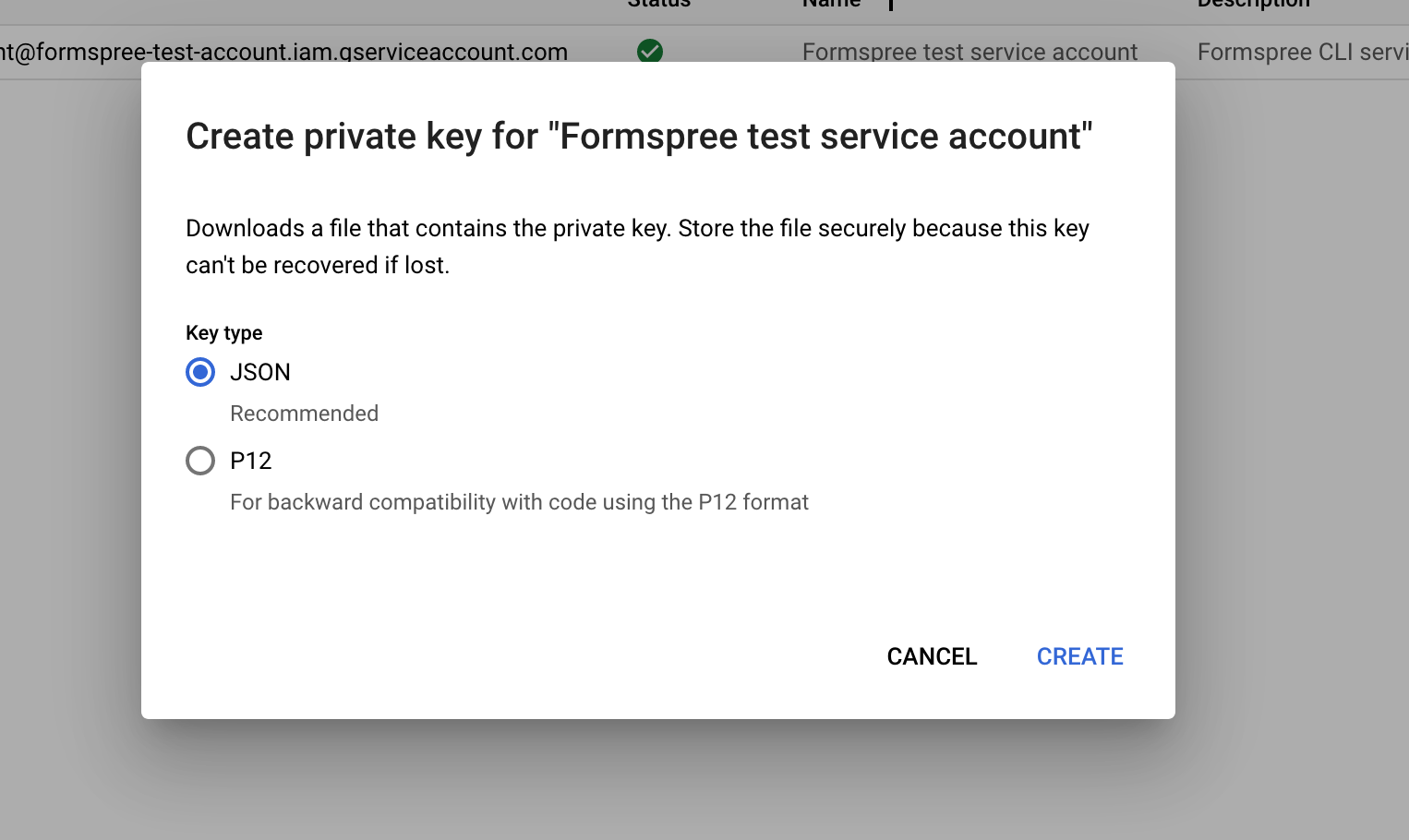
This will return to you a file to download containing the private key and another private service account data. Store this information securely. We’ll need it in formspree.json configuration step.
4. Enable Drive and Spreadsheet API
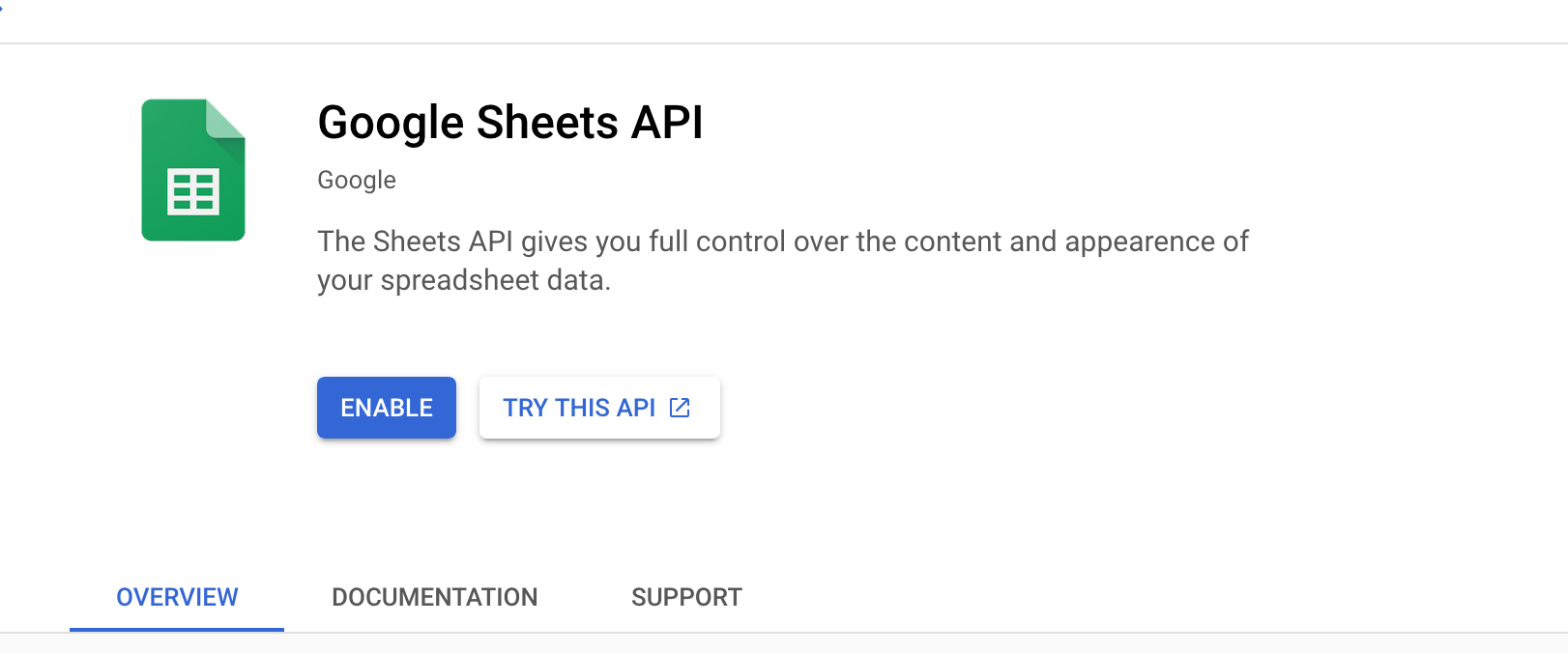
To create a spreadsheet Formspree requires you to use the Google Drive and sheets API using your credentials. For that, you need to enable both APIs on Google Cloud Console.
Select your project and access https://console.cloud.google.com. Write in the search bar Google Drive API. Click Enable on the resulting page to enable the API.
Repeat this step by searching for Google Sheets API.
formspree.json configuration
| Key | Type | Description |
|---|---|---|
app | String | Must be googlesheets |
privateKey | String | The private_key data that you have in the JSON file generated in Getting your key step. |
serviceAccount | String | The service account email that you have received in the Create a service account step. You can see it in the JSON file that contains your service account data as client_email. You can also access the service account dashboard and copy the email column. |
type | String | Must be sendToSpreadsheet |
sendInvitationTo | String | Optional. The email that the spreadsheet created by Formspree will be shared. An email will be sent to the email configured there. Default: Your form target email and if not exists your account email. In this sequence. If both do not exist, an error will be shown on the console. |
Example
{
  "forms": {
    "support": {
      "name": "Clients Spreadsheet",
      "actions": [
        {
          "app": "googlesheets",
          "privateKey": "$GOOGLE_SHEETS_KEY",
          "serviceAccount": "formspree-test-service-account@formspree-test-account.iam.gserviceaccount.com",
          "type": "sendToSpreadsheet",
          "sendInvitationTo": "other@email.com"
        }
      ]
    }
  }
}
Validation rules
No validation rules are implicitly configured.