Sending a confirmation or response email
Available on: Professional, Business plans
Note: If you’re using the Formspree CLI please instead refer to our article Send a confirmation email.
If you want to provide users with confirmation that you’ve received their submission, you can easily set up the autoresponses plugin.
Using Workflow
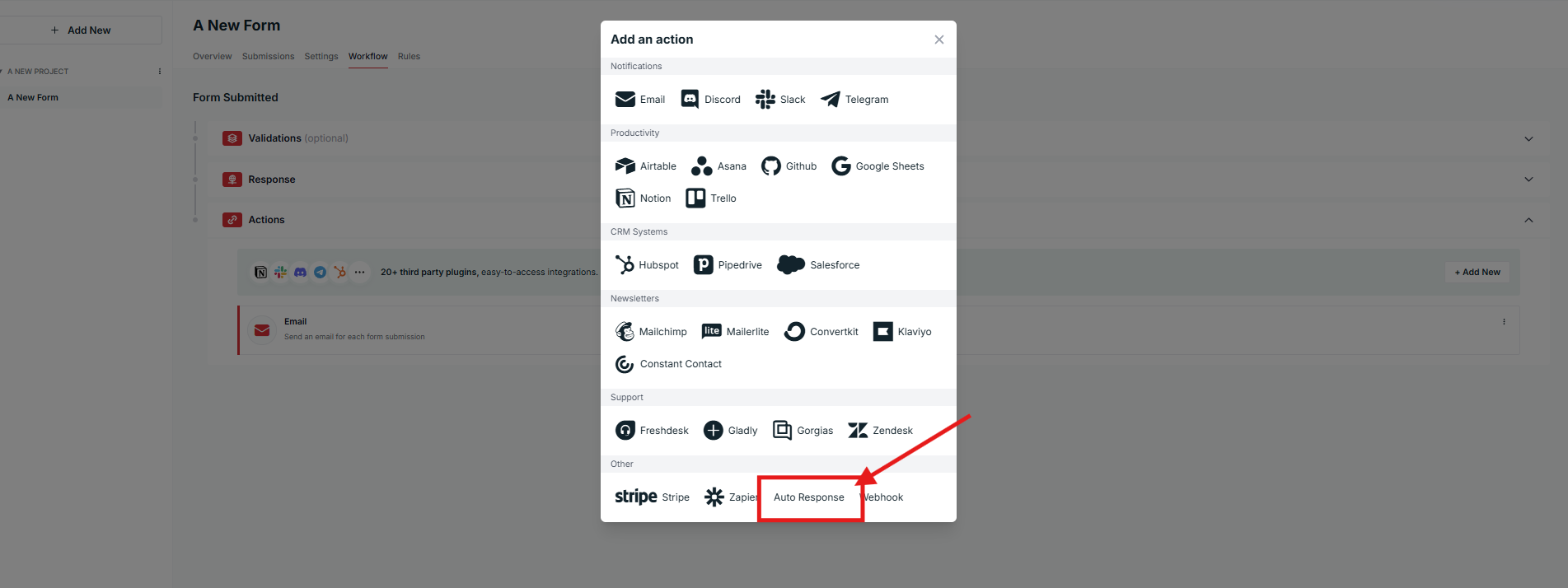
Visit the Workflow tab of your form, click “+Add New” under the “Actions” section, then click the Auto Response button as shown below:
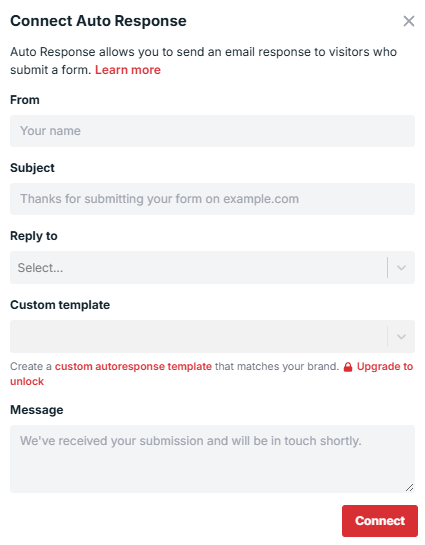
After doing so, you can set a custom from name, subject, and message that will appear in your autoresponse:
Using Plugins (Legacy)
Visit the Plugins tab of your form settings and click on Autoresponses. After doing so, you can set a custom from name, subject, and message that will appear in your autoresponse.
Upon a submission, Formspree will automatically send an email to the submitter with your customized message. Make sure you have a field titled email so Formspree knows what email to send the autoresponse to. If you don’t provide an email in one of these fields, Formspree won’t send an autoresponse.
Sending Submission Data as Part of the Response
You can set a custom template for your autoresponse emails to have better control over the content that your users receive when they submit a form. To learn how to do that, check out this guide.
If you want to include the form submission data in the auto-response emails, you must have a custom domain added to your Formspree account. You can learn how to do that here.