Changing a form email address
Available on: All plans
If you have a Formspree account and are using a form created on the Forms page, you can follow these steps to change the target email address:
Using Workflow
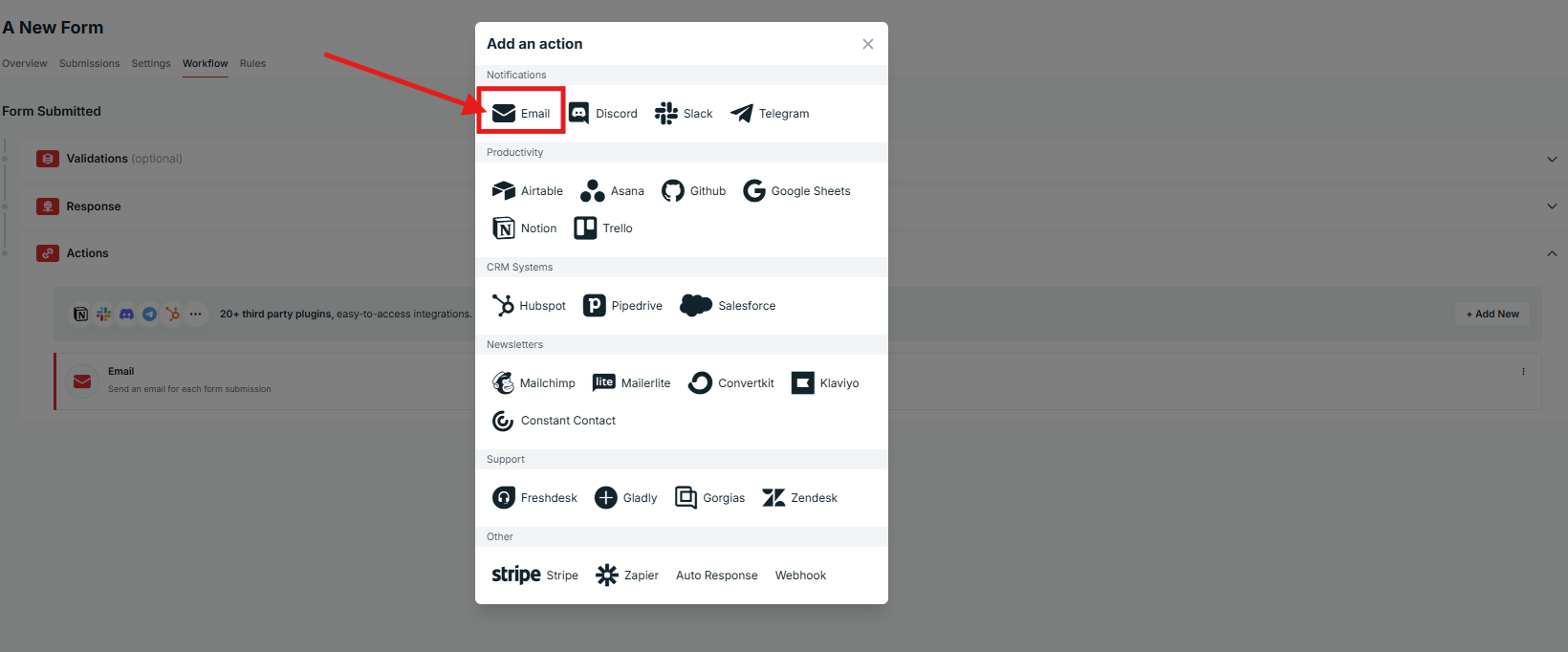
Click on the form name in the left sidebar. Then in the form’s Workflow panel, click “+Add New” under the “Actions” section, then click the Email button as shown below:
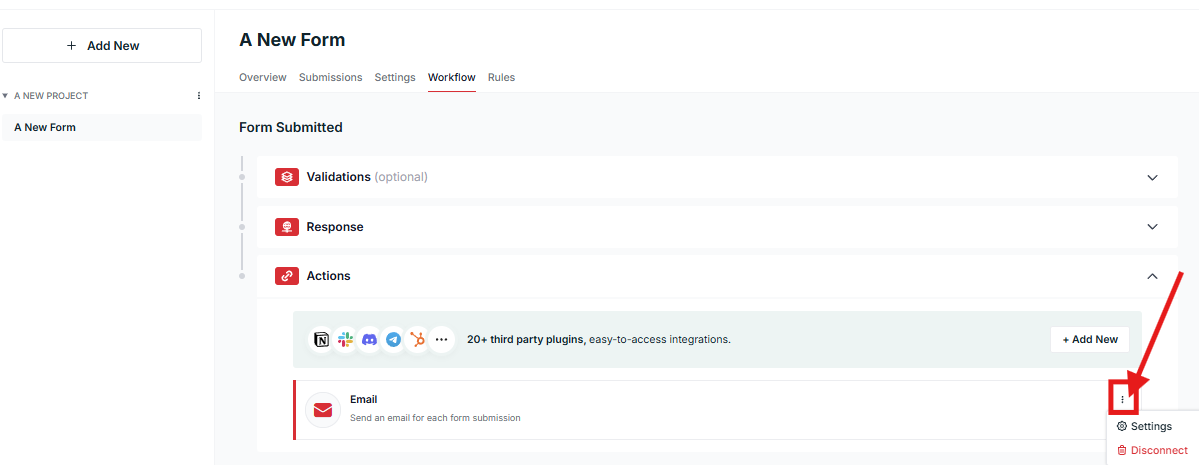
Alternatively, click the 3 dot hamburger icon to the right of the “Email” section and then click “Settings”:
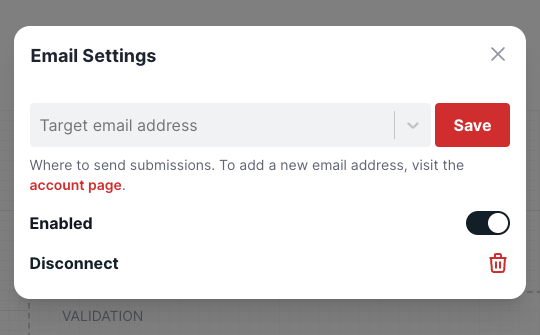
Then, you can update the target email address to any of the Linked Emails you’ve added in your Account panel:
Using Form Settings (Legacy)
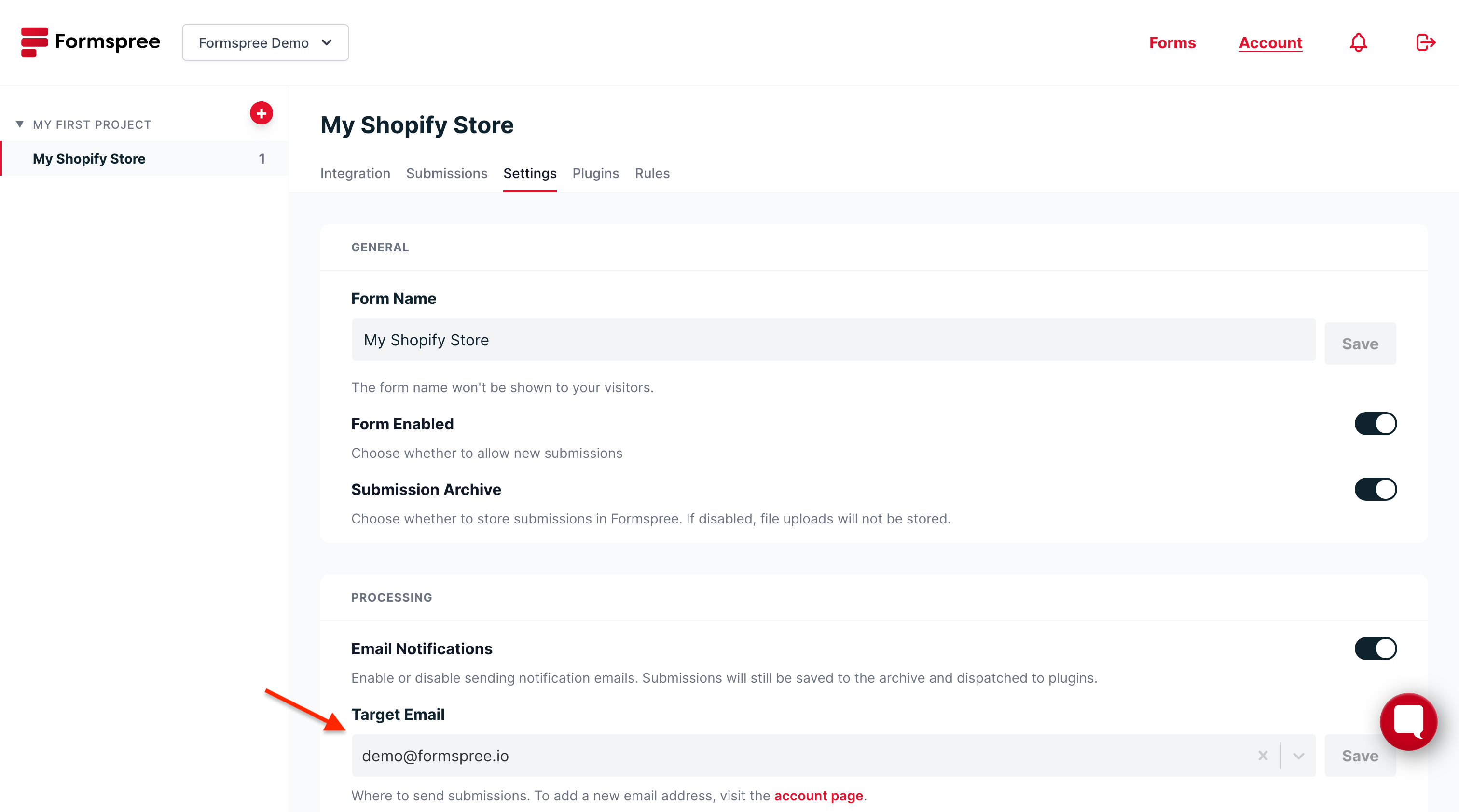
Click on the form name in the left sidebar. Then in the Form Settings, you’ll find an option to change the target email address.
Adding a new email
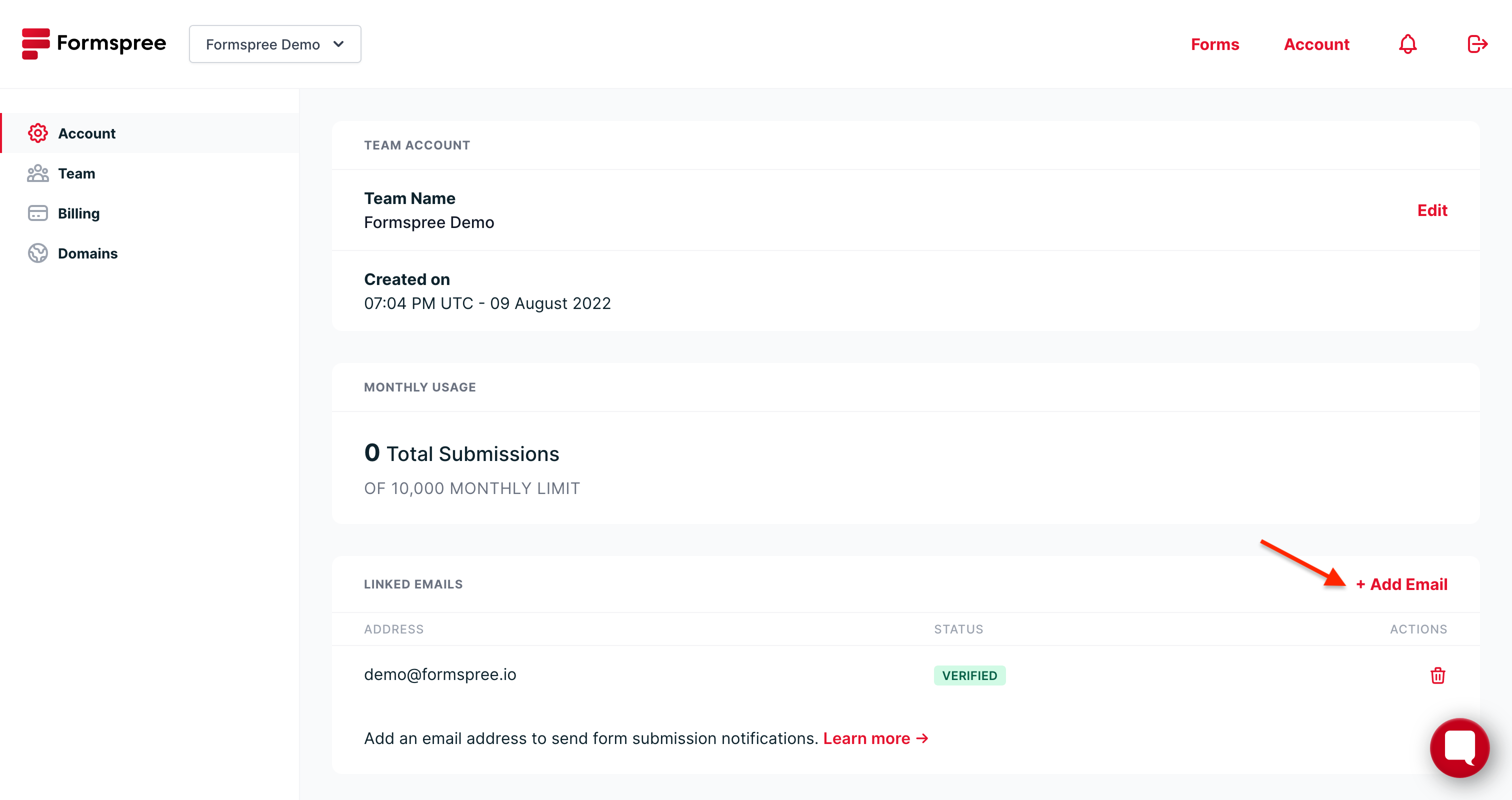
You can change your form’s target email to any of your verified email addresses. If you want to change it to a new email address, you first need to link the address to your account. To add a new email address, add your email via the account tab.
“Legacy” forms
If you are using a form that was created by setting the action= attribute of your HTML form to https://formspree.io/<your-email>, then you have what we consider a “Legacy” form.
Legacy forms are deprecated, and you should follow our instructions to migrate your forms.