Use ActiveCampaign to collect contacts
Available on: Professional & Business plans
ActiveCampaign is a powerful CRM and marketing automation platform designed to help teams manage leads and automate follow-ups.
When you connect your form to an ActiveCampaign account, each submission will automatically create a contact if one does not already exist for the submitted email. If a contact already exists, Formspree will only subscribe that contact to the selected lists and update the contact’s tags.
Form Setup
Before using the ActiveCampaign Plugin, you must create a form to collect the necessary information. Any HTML form will work, as long as it includes the fields you want to send to ActiveCampaign. During plugin setup, you can select the ActiveCampaign lists where new contacts should be subscribed. List selection is optional.
Special Fields
name=“email” (required)
ActiveCampaign requires an email address. Formspree will use the email field.
For example:
<input type="email" name="email" placeholder="Email" required>name=“name”
If you include name fields, Formspree will send them to ActiveCampaign when creating a contact.
<input type="text" name="name" placeholder="Contact Name">or
<input type="text" name="firstName" placeholder="First name">
<input type="text" name="lastName" placeholder="Last name">
name=“phone”
If you include a phone field, it will be sent to ActiveCampaign.
<input type="tel" name="phone" placeholder="Phone">name=“tags”
An input named tags can be used to add tags to the contact in ActiveCampaign. Tags should be comma-separated. Only existing ActiveCampaign tags are applied. The formspree tag is always added and will be created automatically if it does not already exist.
<input type="text" name="tags" value="nice tag, another tag">Custom Fields
In addition to the fields above, you can send any ActiveCampaign custom fields. Formspree matches submission keys to ActiveCampaign custom field titles (case-insensitive, spaces ignored). If a matching custom field exists, the value will be sent to ActiveCampaign.
Example (matches a custom field titled “Company Size”):
<input type="text" name="companysize" placeholder="Company Size">Connecting to ActiveCampaign
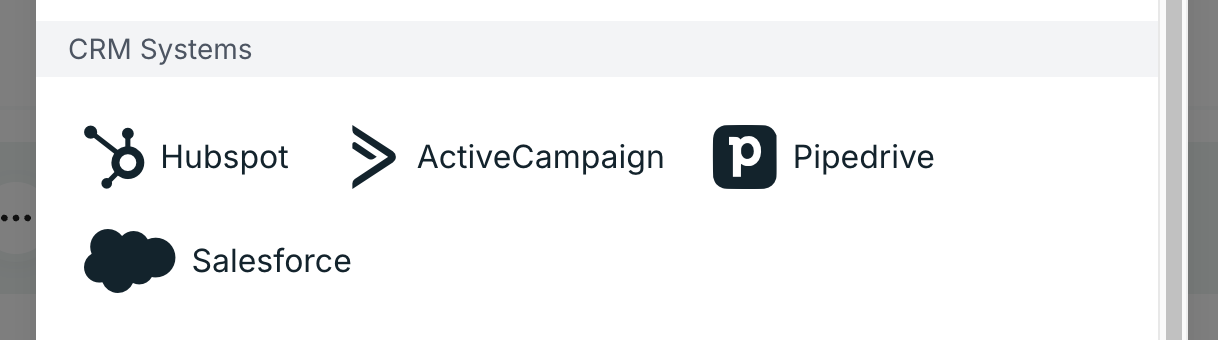
Once you’ve created and configured a form, you can connect it to ActiveCampaign using the ActiveCampaign Plugin. To do so, first, go to the Workflow tab of your form. Then click the ActiveCampaign button as shown below:
After clicking on the ActiveCampaign plugin button, enter your ActiveCampaign API URL and API Token. You can find both under Settings > Developer in your ActiveCampaign account. The API URL is account-specific and commonly looks like https://{youraccountname}.api-us1.com/api/3.
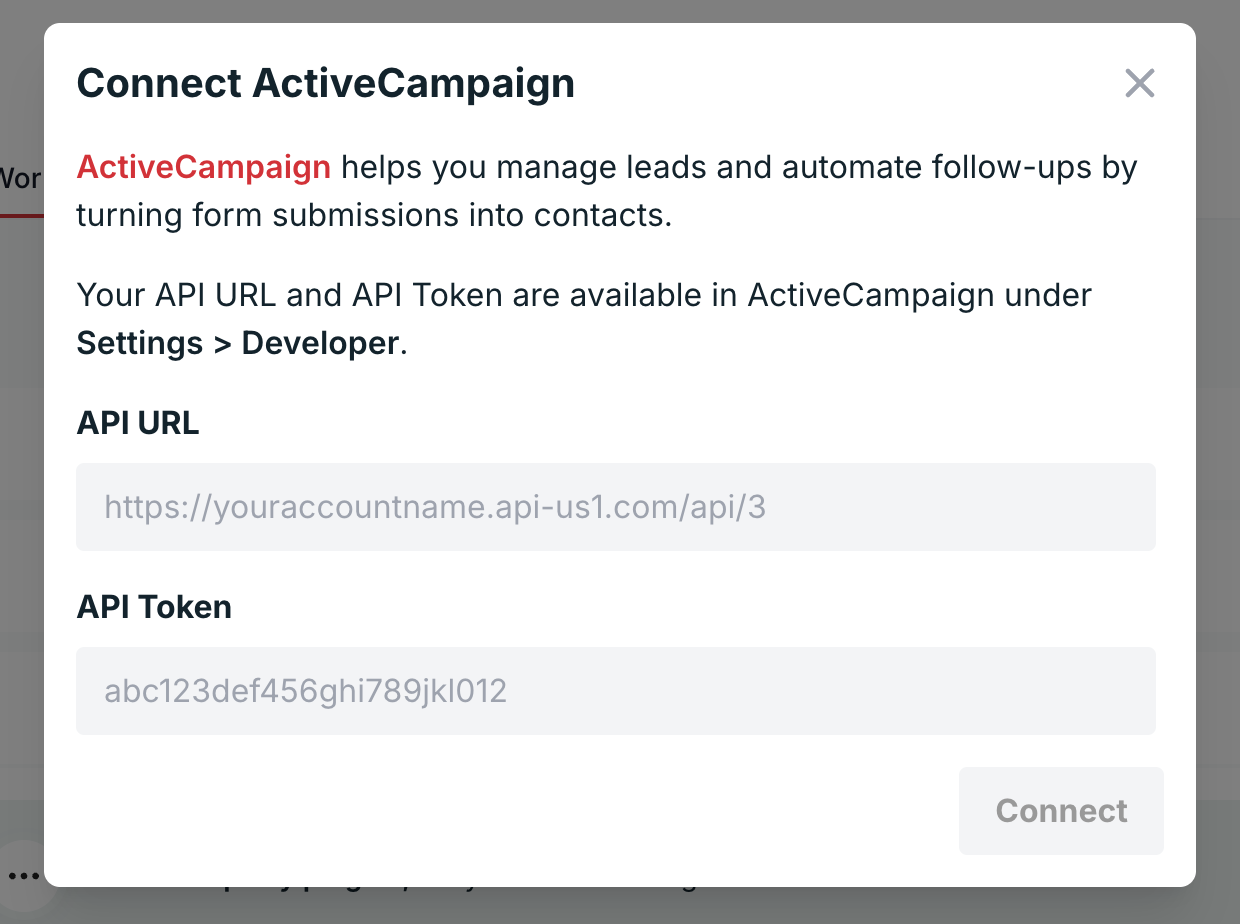
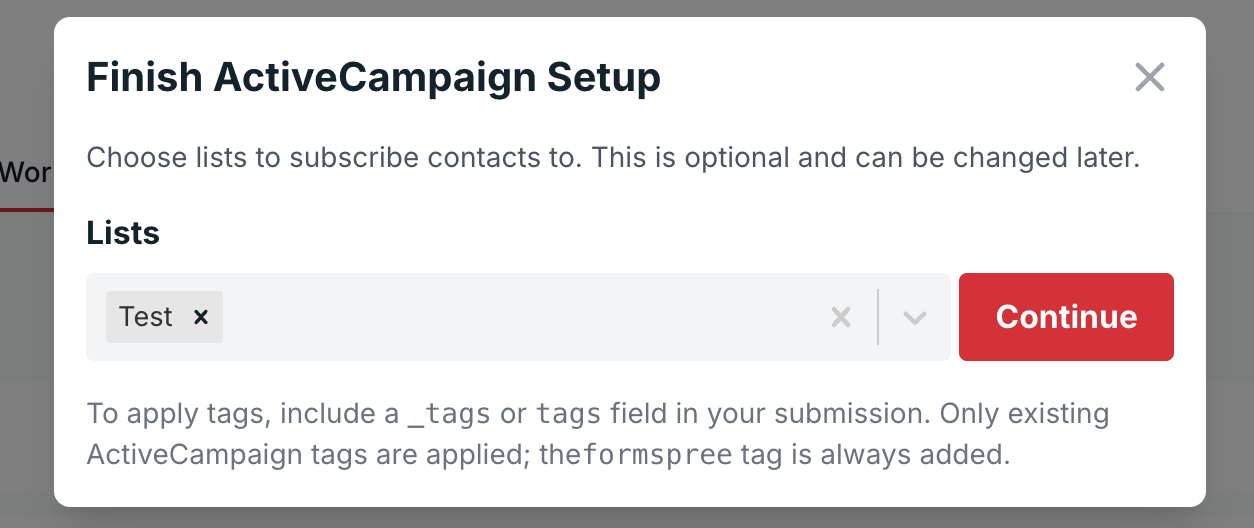
Click Connect. Once your form is connected to ActiveCampaign, you need to select the ActiveCampaign list to which new contacts should be subscribed. You can leave this empty if you don’t want to subscribe your new contacts to any list.
Changing ActiveCampaign Settings
If you want to change the settings of the plugin, you can navigate to the Workflow tab in your form settings, locate the ActiveCampaign plugin, and click on the three-dotted button as shown below. Then, click on the Settings button.
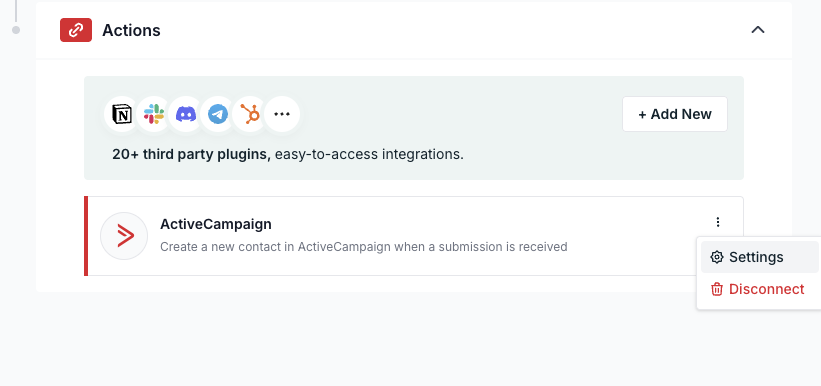
You’ll now be able to change the settings of the plugin. It will be the same as finishing the setup while adding the plugin for the very first time.
You can also remove or disconnect the plugin from Formspree by clicking on the red button named “Disconnect”.