Use Linear to create issues
Available on: Personal, Professional, Business plans
Linear is a streamlined project management tool built for engineering teams to plan, track, and ship work. With clean, fast interfaces and tight Git integrations, it’s a popular choice for tracking bugs, feature requests, and other issues.
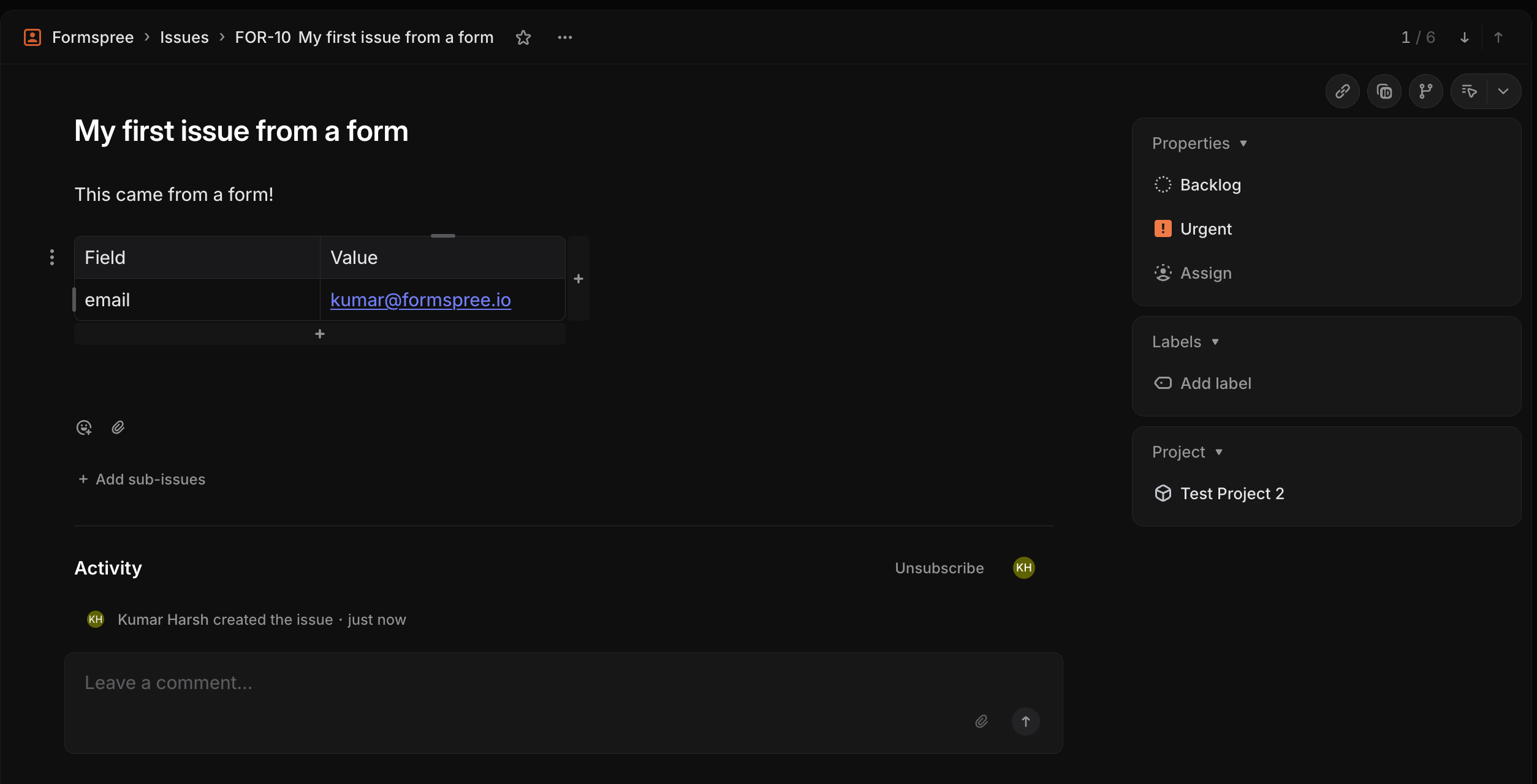
When you connect your form to a Linear workspace, each submission will automatically create a new issue in your chosen team and project. You can optionally map form fields to control the issue title, description, and priority.
Form Setup
Before using the Linear Plugin, you must create a form to collect new submissions. Any HTML form will work. Additionally, you can use the following special named inputs to customize the Linear issue.
name=“subject”
Adding an input named “subject” will set the title of the issue. If omitted, Formspree will generate a default title from the submission.
<input type="text" name="subject" placeholder="Issue title" />name=“message”
Adding an input named “message” will set the description of the issue.
<textarea name="message" placeholder="Describe the issue"></textarea>name=“priority”
Adding an input named “priority” lets you set the priority of the created issue. Accepted values are urgent, high, medium, and low.
<input type="hidden" name="priority" value="high" />Alternatively, let your visitors choose:
<select name="priority">
  <option value="urgent">Urgent</option>
  <option value="high">High</option>
  <option value="medium">Medium</option>
  <option value="low">Low</option>
</select>
Connecting to Linear
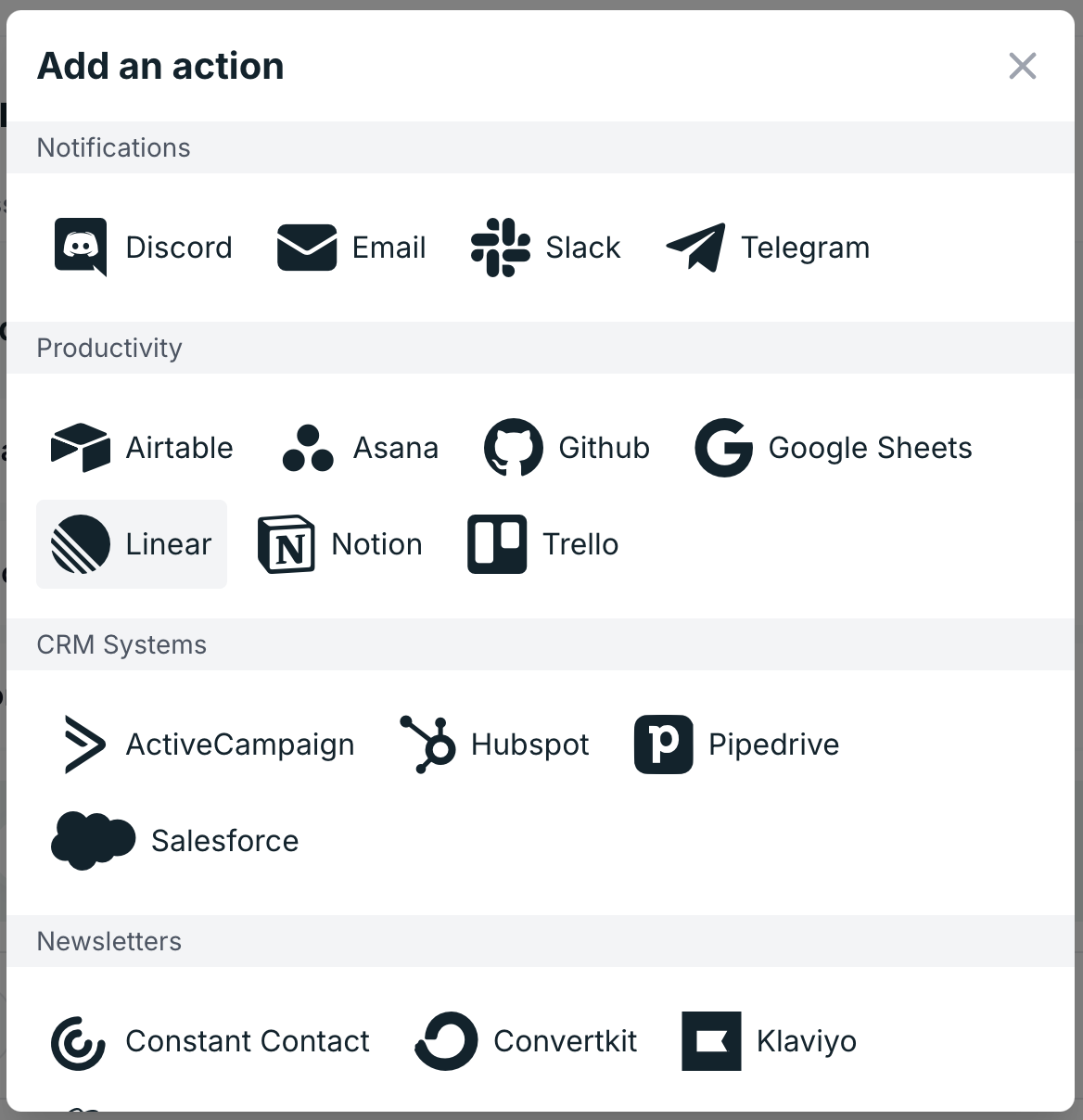
Once you’ve created and configured a form, you can connect to Linear using the Linear Plugin. To do so, first go to the Workflow tab of your form, then click the + Add New button under the Actions section.
In the plugins popup, select Linear:
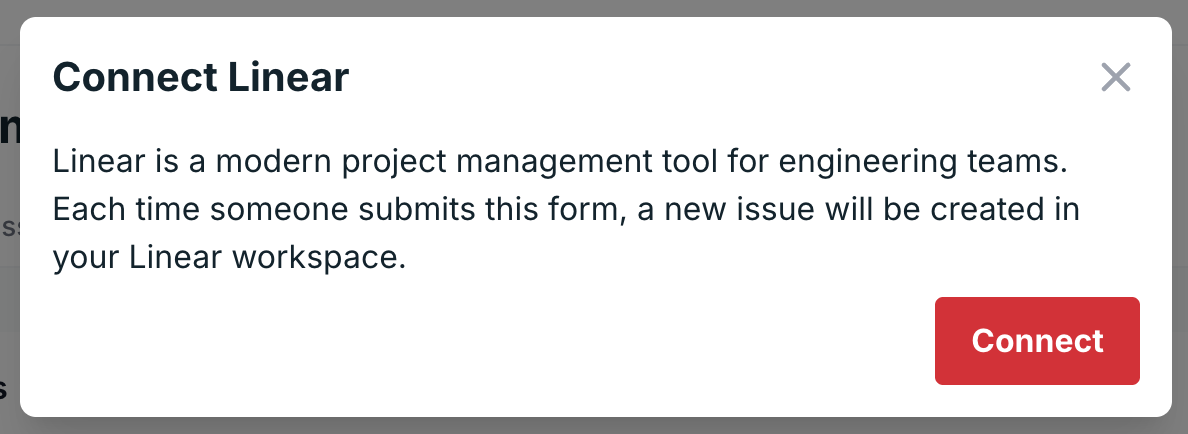
A dialogue will open prompting you to connect your Linear account. Click Connect to begin the OAuth flow.
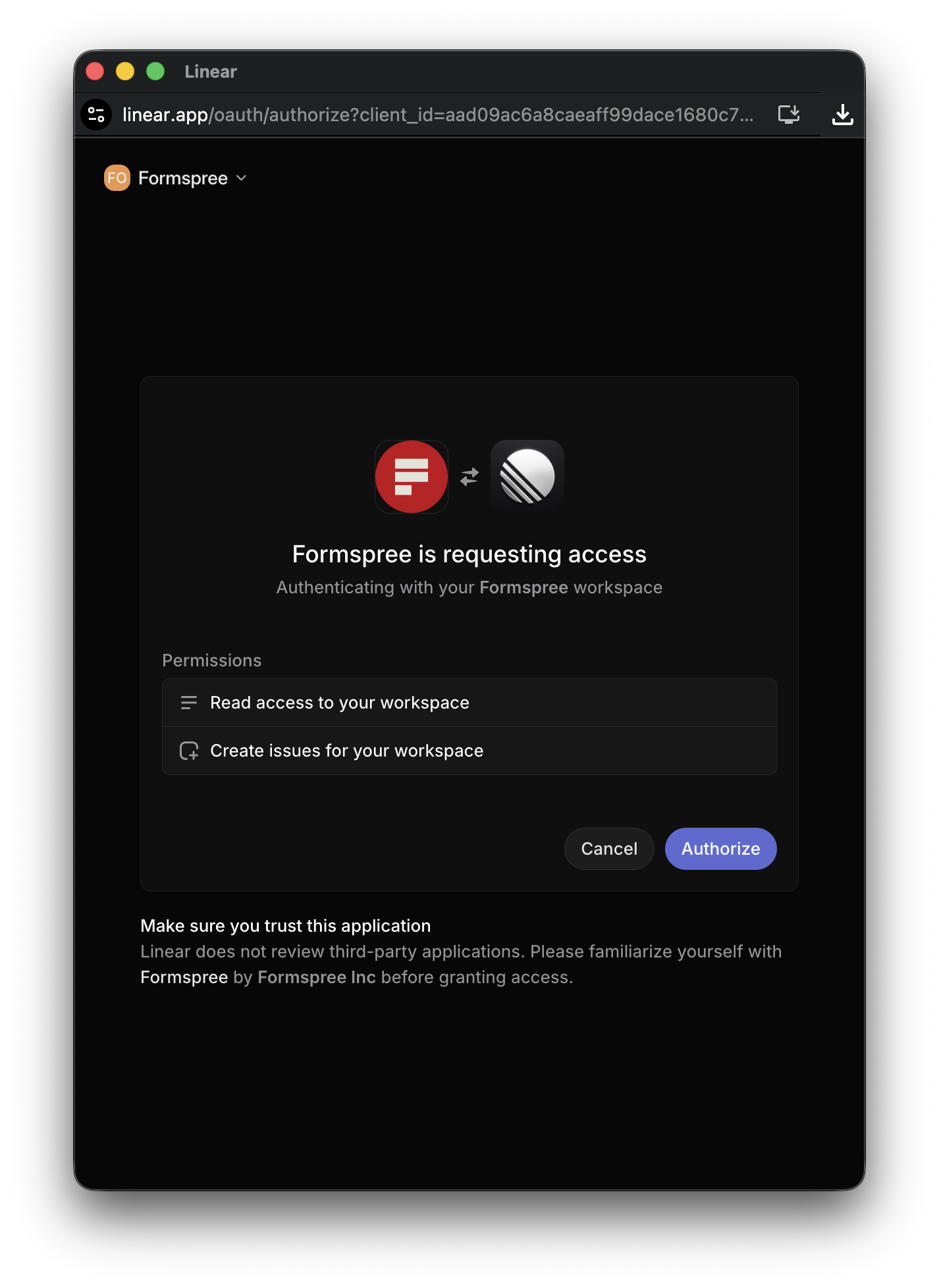
You’ll need to log into your Linear account and authorize Formspree to create issues in your workspace:
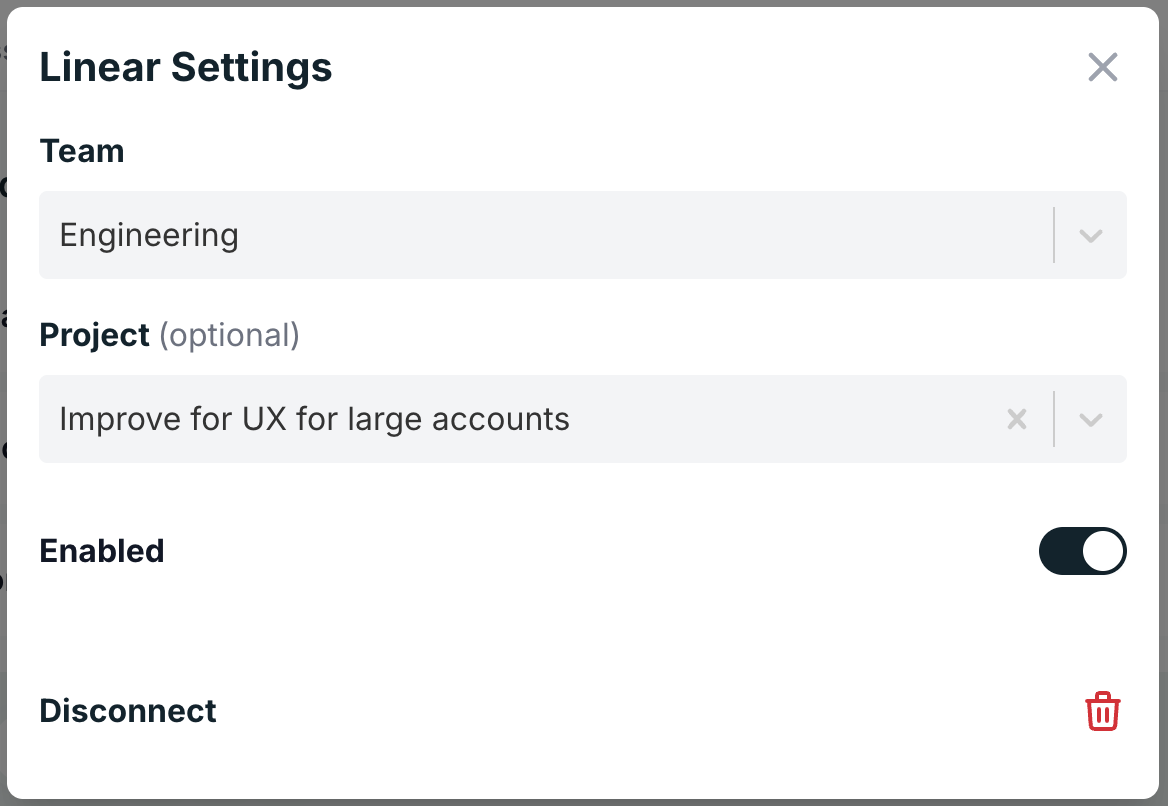
After authorizing Formspree in Linear, you’ll be returned to the setup screen where you can select the team and optionally a project where new issues will be created.
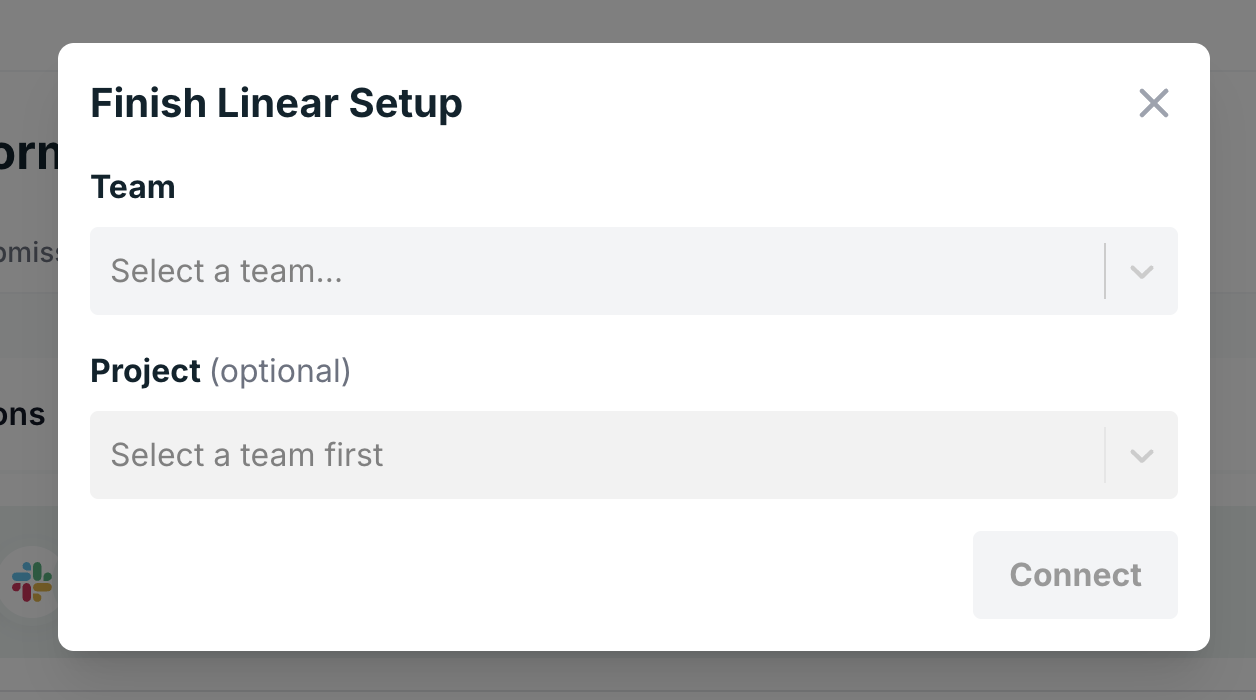
Once your team and project are selected, click Save to finish setup. From this point on, every new form submission will create a corresponding issue in Linear.
Changing Linear Settings
To update your team or project selection, go to the Plugins tab, locate the Linear plugin, and click its settings. You can also disconnect the plugin entirely by clicking Disconnect.