# Use Linear to create issues
> Formspree Docs · Plugins · Updated July 23, 2026
#### Available on: Professional, Business plans
Linear is a streamlined project management tool built for engineering teams to plan, track, and ship work. With clean, fast interfaces and tight Git integrations, it's a popular choice for tracking bugs, feature requests, and other issues.
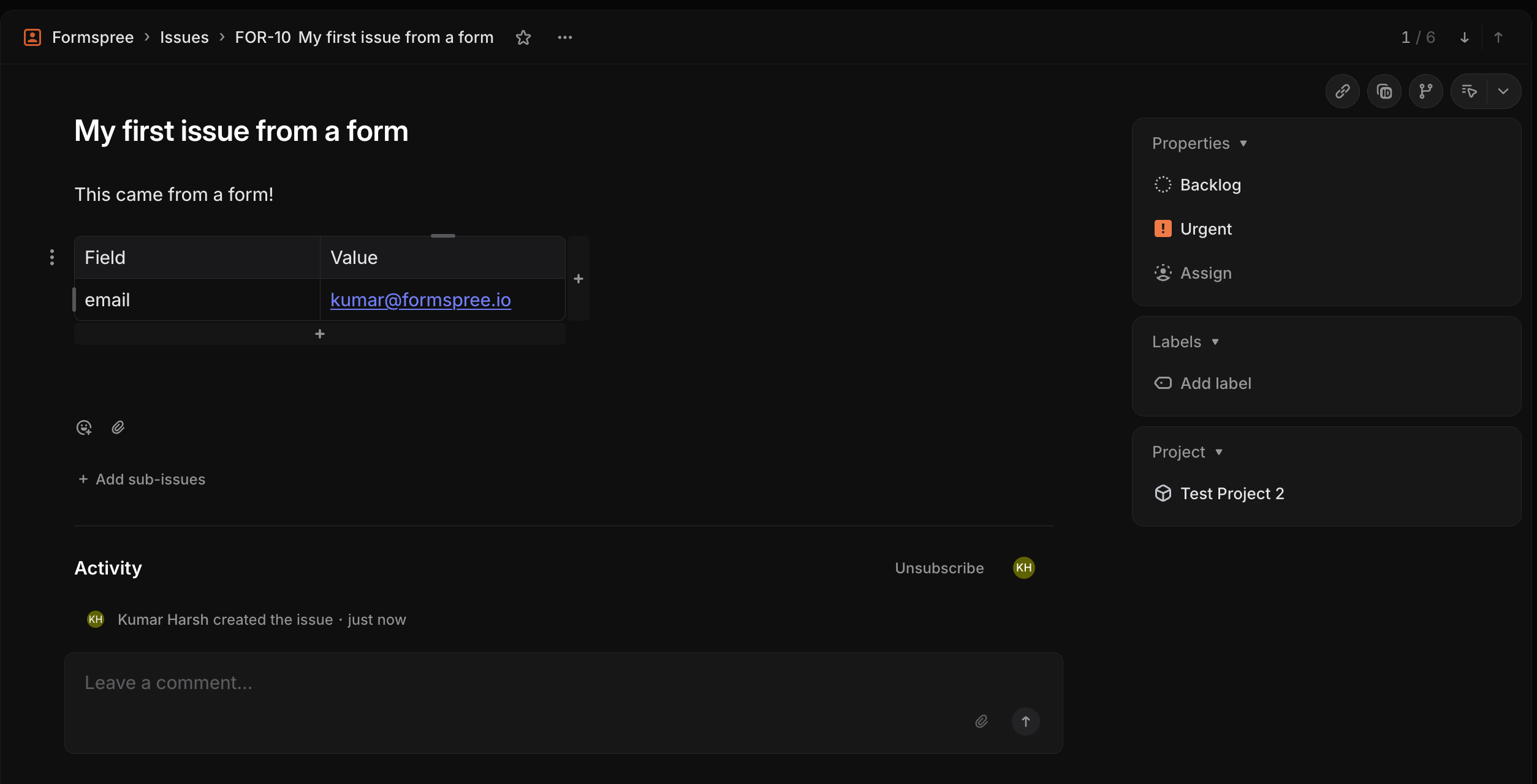
When you connect your form to a Linear workspace, each submission will automatically create a new issue in your chosen team and project. You can optionally map form fields to control the issue title, description, and priority.
## Form Setup
Before using the Linear Plugin, you must create a form to collect new submissions. Any HTML form will work. Additionally, you can use the following special named inputs to customize the Linear issue.
### name="subject"
Adding an input named **"subject"** (or **"\_subject"**) will set the title of the issue. If omitted, Formspree will generate a default title from the submission.
```html
```
### name="message"
Adding an input named **"message"** (or **"\_message"**) will set the description of the issue.
```html
```
### name="priority"
Adding an input named **"priority"** (or **"\_priority"**) lets you set the priority of the created issue. Accepted values are **urgent**, **high**, **medium**, and **low**.
```html
```
Alternatively, let your visitors choose:
```html
```
## Connecting to Linear
Once you've created and configured a form, you can connect to Linear using the Linear Plugin. To do so, first go to the **Workflow** tab of your form, then click the **+ Add New** button under the **Actions** section.
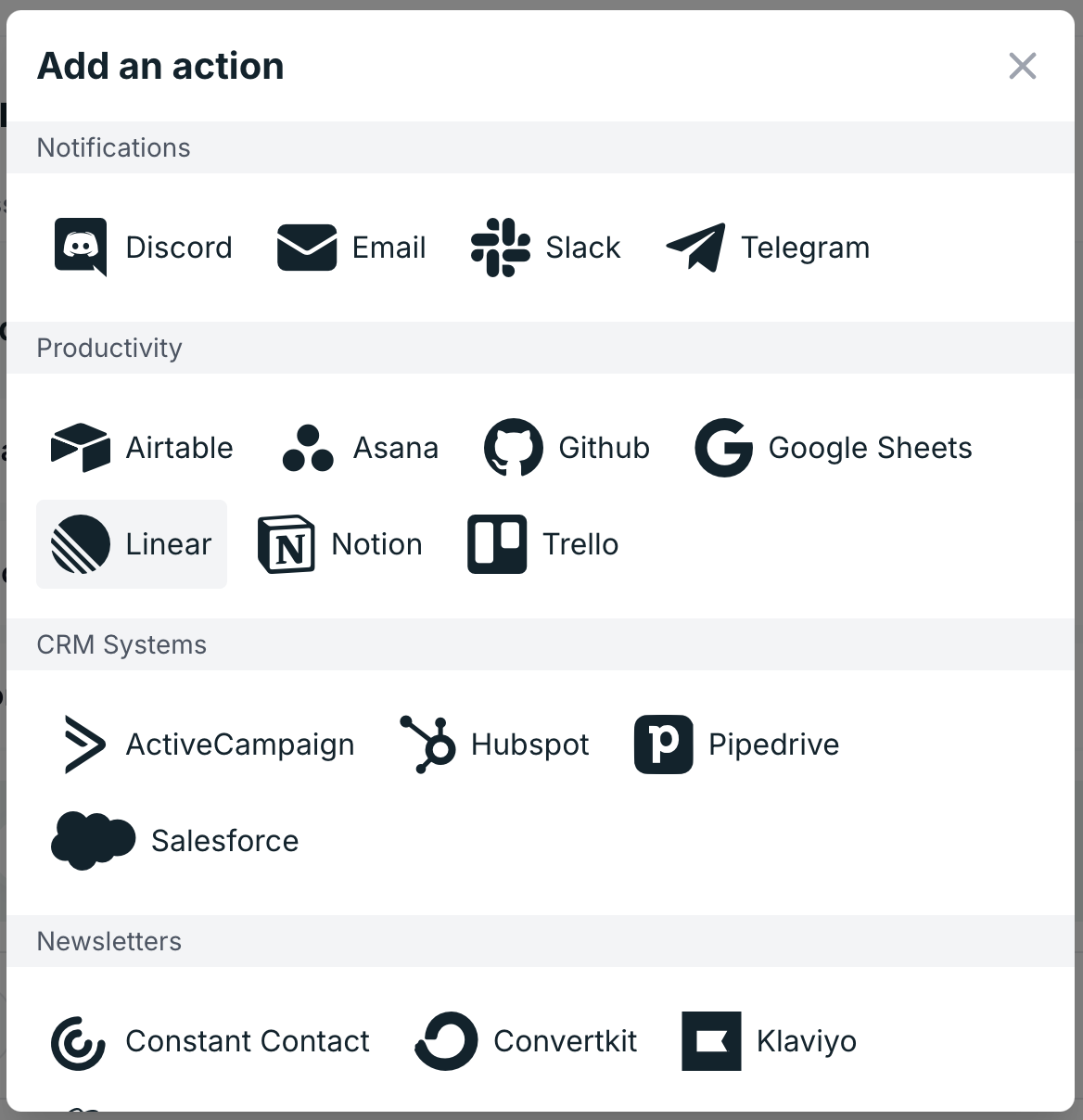
In the plugins popup, select Linear:
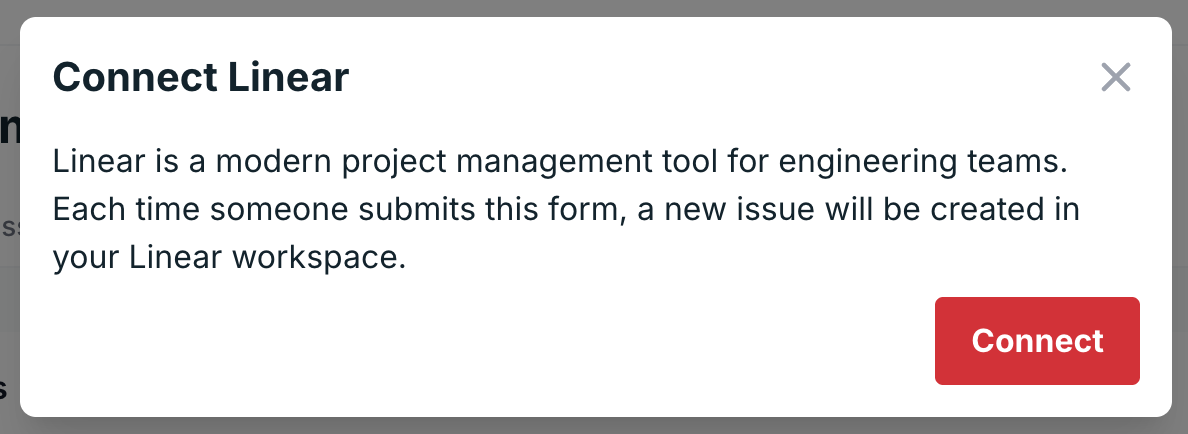
A dialogue will open prompting you to connect your Linear account. Click **Connect** to begin the OAuth flow.
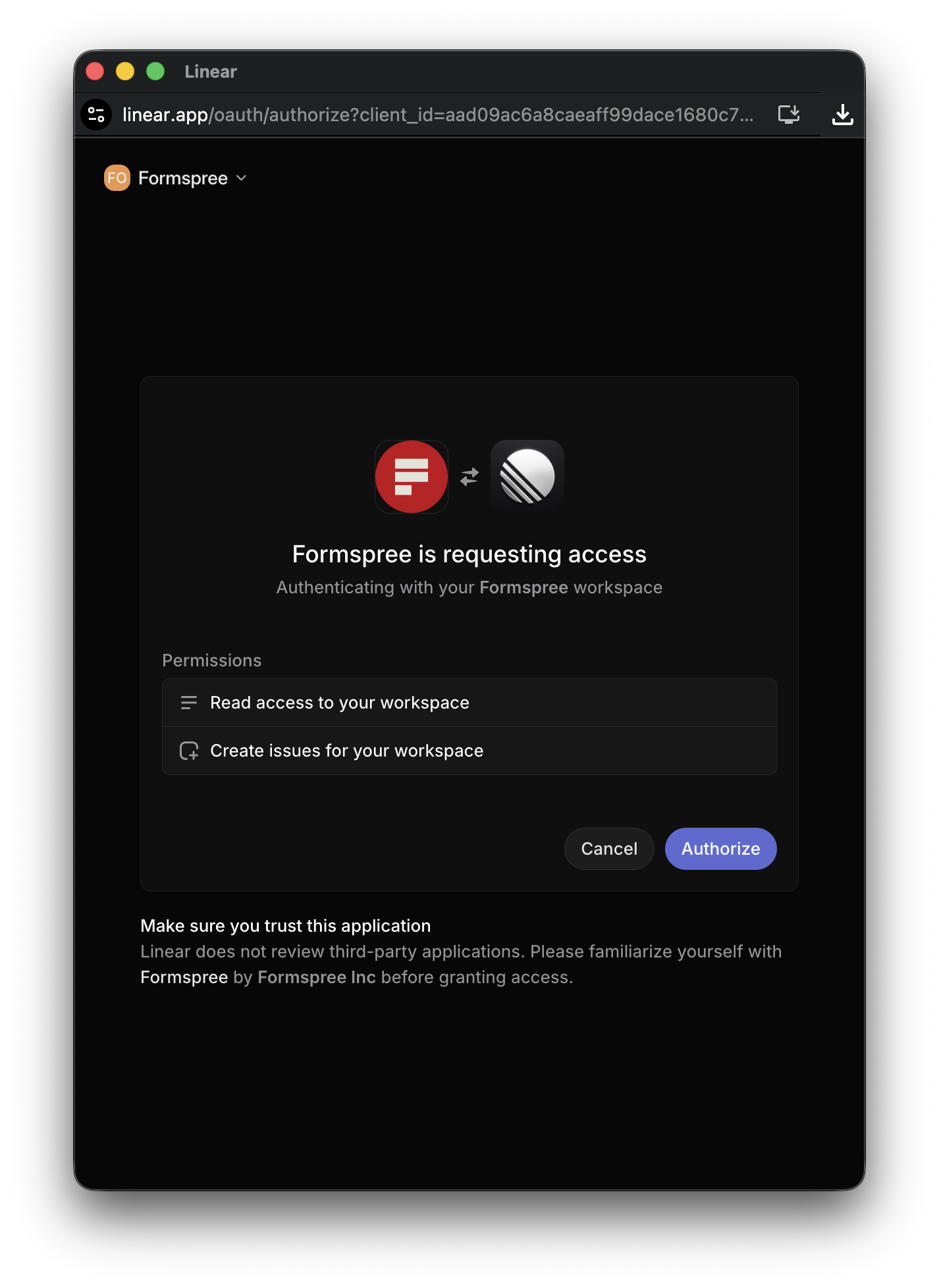
You'll need to log into your Linear account and authorize Formspree to create issues in your workspace:
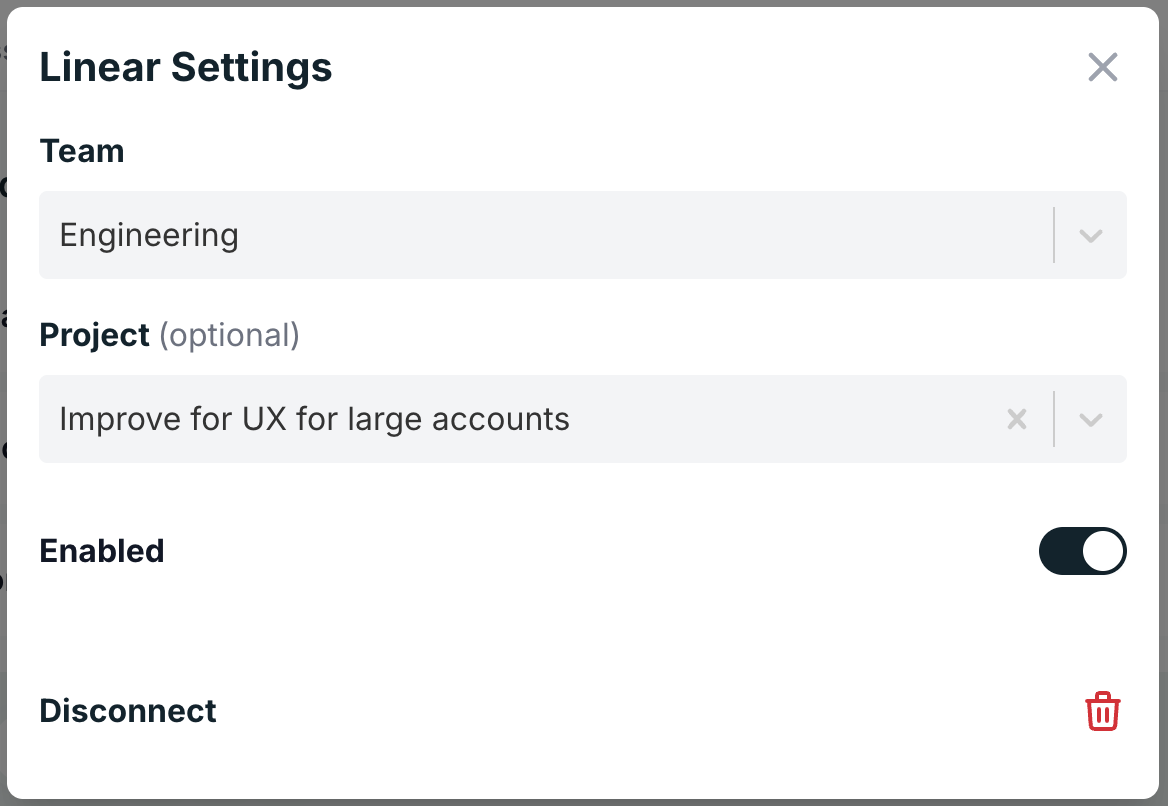
After authorizing Formspree in Linear, you'll be returned to the setup screen where you can select the **team** and optionally a **project** where new issues will be created.
Once your team and project are selected, click **Save** to finish setup. From this point on, every new form submission will create a corresponding issue in Linear.
## Changing Linear Settings
To update your team or project selection, go to the **Plugins** tab, locate the Linear plugin, and click its settings. You can also disconnect the plugin entirely by clicking **Disconnect**.
 A dialogue will open prompting you to connect your Linear account. Click **Connect** to begin the OAuth flow.
 You'll need to log into your Linear account and authorize Formspree to create issues in your workspace:
 After authorizing Formspree in Linear, you'll be returned to the setup screen where you can select the **team** and optionally a **project** where new issues will be created.
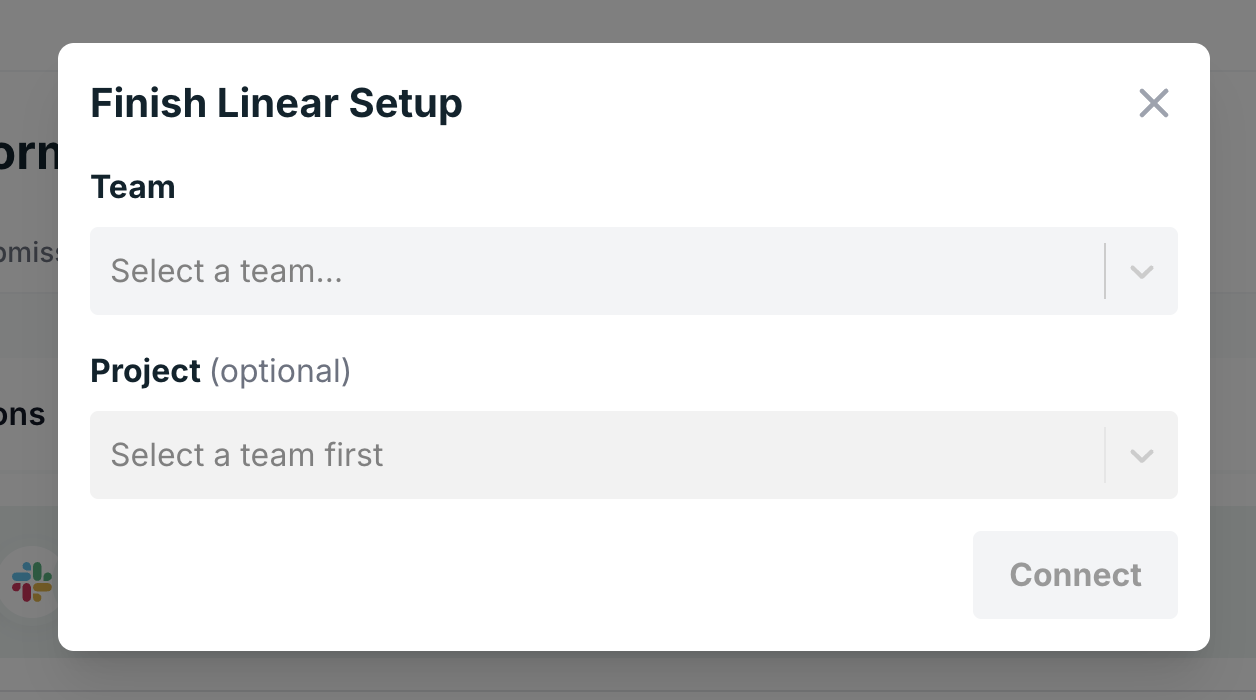 Once your team and project are selected, click **Save** to finish setup. From this point on, every new form submission will create a corresponding issue in Linear.
 ## Changing Linear Settings
To update your team or project selection, go to the **Plugins** tab, locate the Linear plugin, and click its settings. You can also disconnect the plugin entirely by clicking **Disconnect**.
## Changing Linear Settings
To update your team or project selection, go to the **Plugins** tab, locate the Linear plugin, and click its settings. You can also disconnect the plugin entirely by clicking **Disconnect**.