# Use WhatsApp to receive submission notifications
> Formspree Docs · Plugins · Updated October 9, 2026
#### Available on: All plans
[WhatsApp](https://www.whatsapp.com/) is one of the world's most popular messaging apps.
When you connect your form to WhatsApp, every submission sends a WhatsApp message to your phone with the submission data. All you need is a phone number registered with WhatsApp.
 ## Form Setup
Any HTML form works with the WhatsApp plugin, and it doesn't need any specially named inputs. Formspree uses each input's `name` as its label in the message, so pick names that read well.
```html
```
Formspree leaves its special fields, like `subject` and `_gotcha`, out of the message. Unlike the Slack and Telegram plugins, WhatsApp doesn't use a `subject` input. The first line of the message is always your form's name.
### File Uploads
If your form has a file input, the message includes a link to each uploaded file. The files themselves stay hosted on Formspree.
## Connecting to WhatsApp
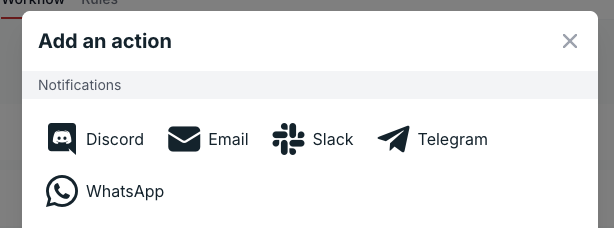
Open your form in the Formspree dashboard, go to the **Workflow** tab, and click **+ Add New** under **Actions**. Select **WhatsApp** under **Notifications**.
## Form Setup
Any HTML form works with the WhatsApp plugin, and it doesn't need any specially named inputs. Formspree uses each input's `name` as its label in the message, so pick names that read well.
```html
```
Formspree leaves its special fields, like `subject` and `_gotcha`, out of the message. Unlike the Slack and Telegram plugins, WhatsApp doesn't use a `subject` input. The first line of the message is always your form's name.
### File Uploads
If your form has a file input, the message includes a link to each uploaded file. The files themselves stay hosted on Formspree.
## Connecting to WhatsApp
Open your form in the Formspree dashboard, go to the **Workflow** tab, and click **+ Add New** under **Actions**. Select **WhatsApp** under **Notifications**.
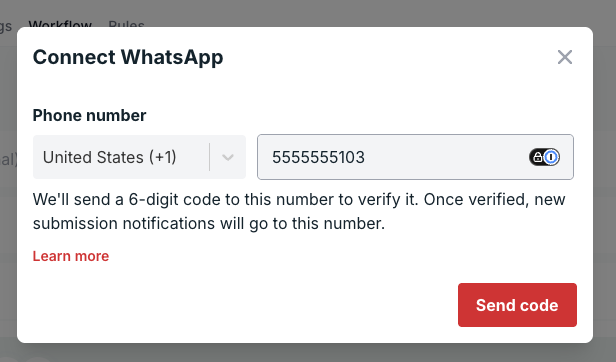
 Pick your country, enter your mobile number, and click **Send code**. Use a number that's registered with WhatsApp.
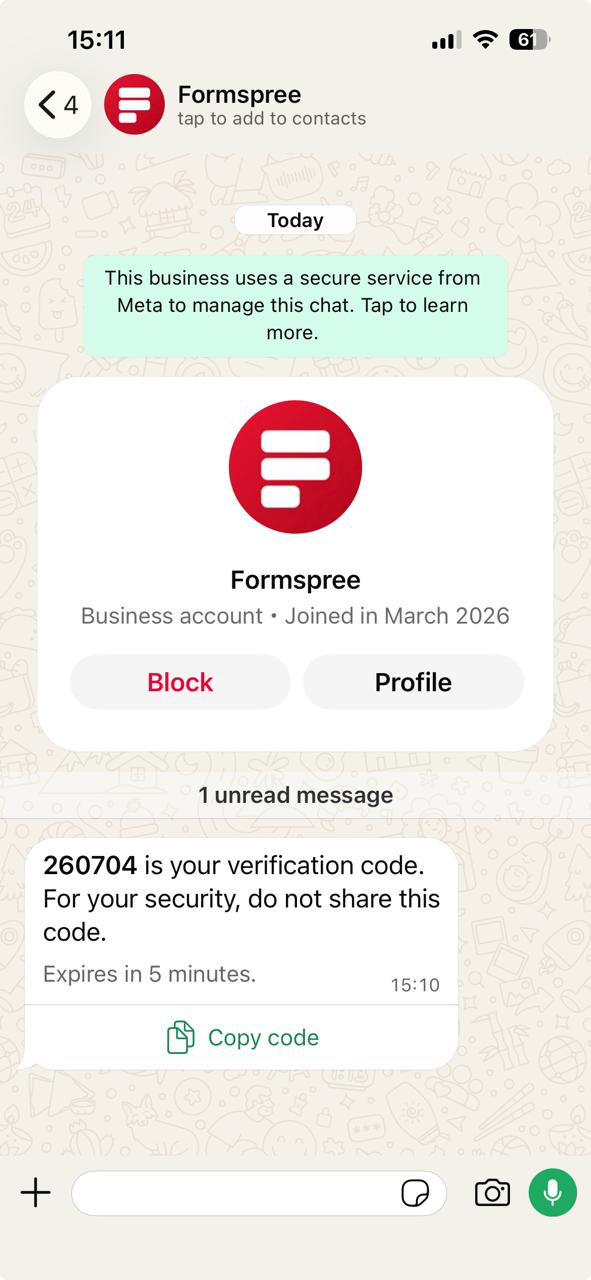
 Formspree sends a 6-digit code to that number on WhatsApp:
 Enter it in the **Verification code** box:
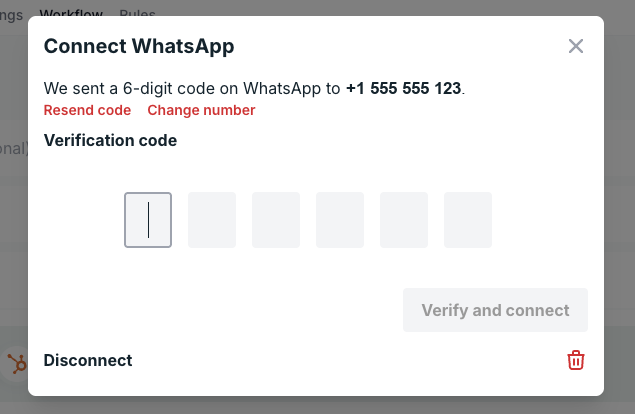 The code is valid for 5 minutes. If it doesn't arrive, click **Resend code**. If you mistyped your number, click **Change number**.
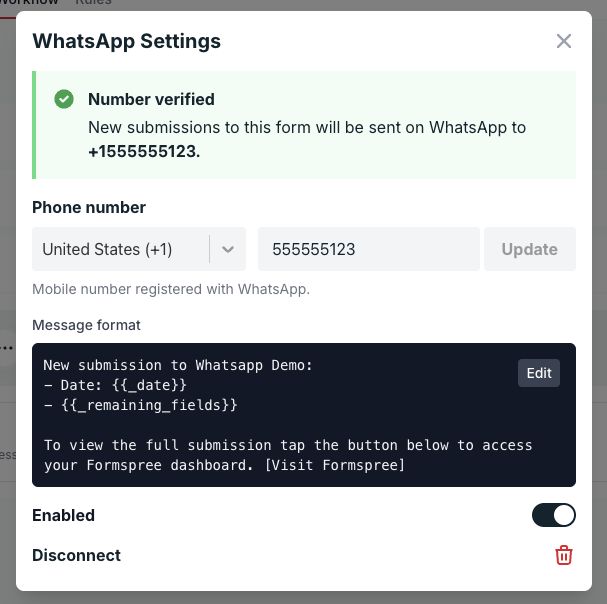
Once the code has been verified, the plugin is connected and enabled. You'll see a **Number verified** confirmation in the dashboard.
The code is valid for 5 minutes. If it doesn't arrive, click **Resend code**. If you mistyped your number, click **Change number**.
Once the code has been verified, the plugin is connected and enabled. You'll see a **Number verified** confirmation in the dashboard.
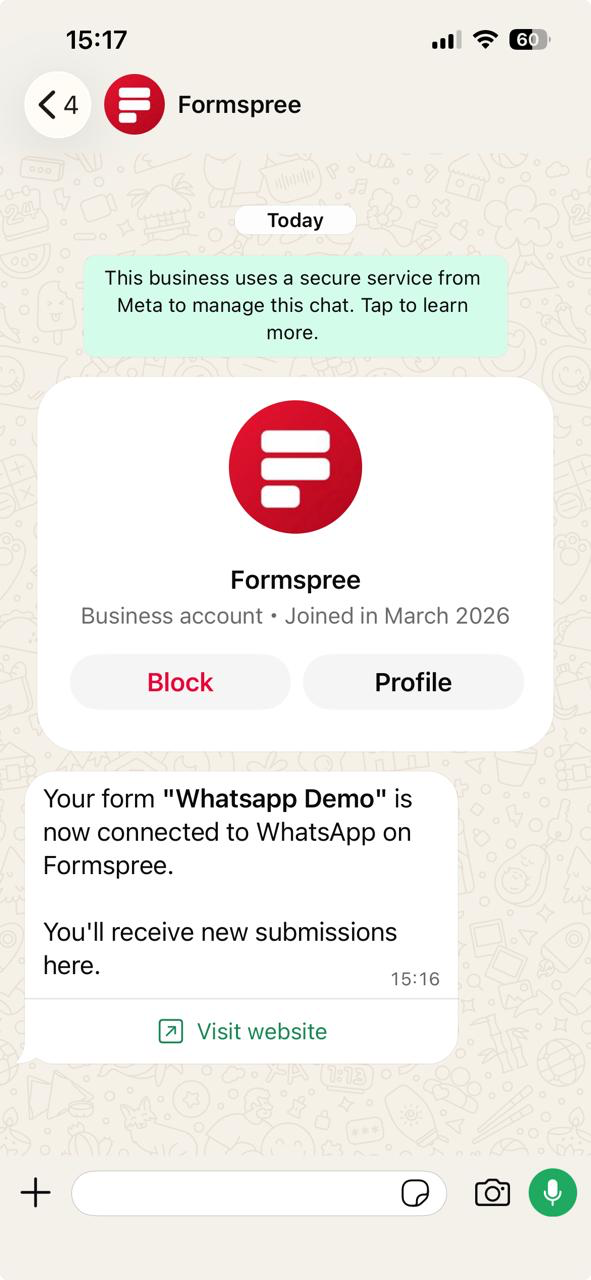
 And, Formspree sends a confirmation message on WhatsApp.
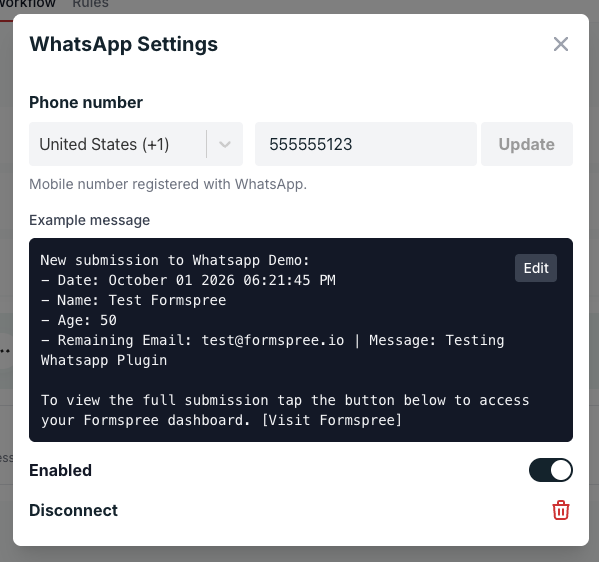
 Each form sends to one number. You can change the number, edit the message, or disable the plugin anytime by opening the WhatsApp plugin again.
### Changing the Number
Open the WhatsApp plugin, enter the new number, and click **Update**. Formspree sends a new code to that number and pauses notifications until you verify it. Your message format carries over.
## Customizing the Message
Every WhatsApp message has three parts:
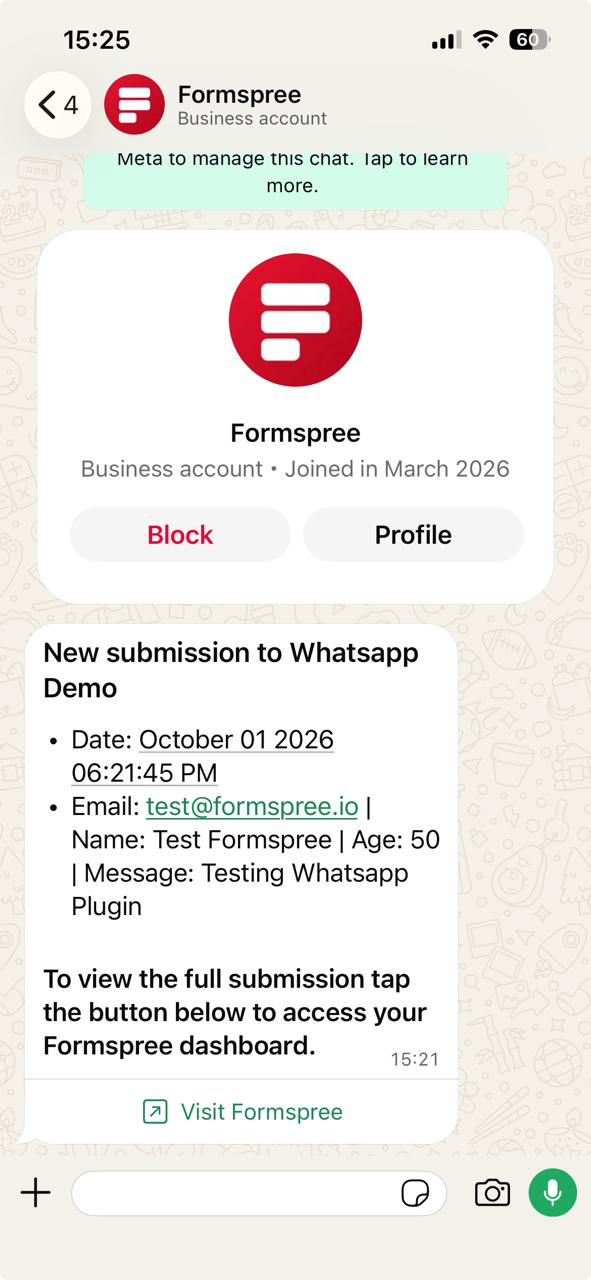
- A first line with your form's name: `New submission to Contact Form:`
- Up to 6 lines that you control.
- A closing line and a **Visit Formspree** button that opens the form's submissions in your dashboard.
The first line, the closing line, and the button are the same in every message. By default, the lines in between show the submission date followed by every field:
```
Date: {{_date}}
{{_remaining_fields}}
```
That message arrives looking like this:
```
New submission to Contact Form:
- Date: October 01 2026 02:15:30 PM
- Name: Jane Doe | Email: jane@example.com | Message: I'd like a quote for 20 seats.
To view the full submission tap the button below to access your Formspree dashboard.
[Visit Formspree]
```
To change it, open the WhatsApp plugin and click **Edit** on the message preview. Type your text, and use the **Insert field** buttons to drop in fields from your form.
Each form sends to one number. You can change the number, edit the message, or disable the plugin anytime by opening the WhatsApp plugin again.
### Changing the Number
Open the WhatsApp plugin, enter the new number, and click **Update**. Formspree sends a new code to that number and pauses notifications until you verify it. Your message format carries over.
## Customizing the Message
Every WhatsApp message has three parts:
- A first line with your form's name: `New submission to Contact Form:`
- Up to 6 lines that you control.
- A closing line and a **Visit Formspree** button that opens the form's submissions in your dashboard.
The first line, the closing line, and the button are the same in every message. By default, the lines in between show the submission date followed by every field:
```
Date: {{_date}}
{{_remaining_fields}}
```
That message arrives looking like this:
```
New submission to Contact Form:
- Date: October 01 2026 02:15:30 PM
- Name: Jane Doe | Email: jane@example.com | Message: I'd like a quote for 20 seats.
To view the full submission tap the button below to access your Formspree dashboard.
[Visit Formspree]
```
To change it, open the WhatsApp plugin and click **Edit** on the message preview. Type your text, and use the **Insert field** buttons to drop in fields from your form.
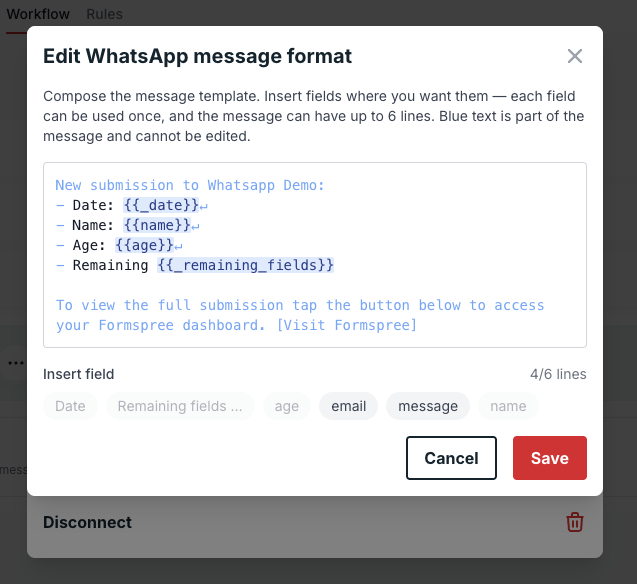 The buttons list the fields from your form's recent submissions. On a form with no submissions yet, you'll only see **Date** and **Remaining fields**, so send a test submission first to get a button for each of your fields.
 You can use these placeholders:
| Placeholder | What it shows |
| --- | --- |
| `{{_date}}` | The date and time of the submission, in your form's time zone |
| `{{_remaining_fields}}` | Every field you haven't placed anywhere else, as `Label: value` pairs on one line |
| `{{field_name}}` | The value of that field, for example `{{email}}` |
For example, this template puts the sender first and the message on its own line:
```
From: {{name}} ({{email}})
Date: {{_date}}
{{message}}
{{_remaining_fields}}
```
A few rules apply to the message format:
- The message can have up to 6 lines, and blank lines count.
- You can use each field only once.
- The **Insert field** buttons come from your form's recent submissions. If a field is missing, send a test submission first.
- WhatsApp doesn't allow line breaks inside a field, so Formspree puts a multi-line answer on a single line.
- Each line holds up to 1,024 characters, and the form's name in the first line holds up to 41 characters. Formspree cuts off anything longer. The **Visit Formspree** button always opens the forms dashboard.
- If a submission doesn't include a field you used in your message template, Formspree leaves it blank.
## Troubleshooting
- The verification code never arrives. Check the country and the number, and make sure the number is registered with WhatsApp, then click **Resend code**.
- You see "Verification code expired." Codes last 5 minutes. Click **Resend code** to get a new one.
- You see "Too many incorrect attempts." After 3 wrong codes, Formspree cancels the code. Click **Resend code** to get a new one.
- You see "Too many verification codes requested." Formspree sends up to 3 codes to the same number every 3 minutes. Wait a few minutes and try again.
- Messages stopped arriving. Open the WhatsApp plugin and check that it's still enabled. If you started changing the number, notifications stay paused until you verify the new one.
- A field doesn't show up under Insert field. The list comes from your form's recent submissions, so send a test submission that includes the field.
You can use these placeholders:
| Placeholder | What it shows |
| --- | --- |
| `{{_date}}` | The date and time of the submission, in your form's time zone |
| `{{_remaining_fields}}` | Every field you haven't placed anywhere else, as `Label: value` pairs on one line |
| `{{field_name}}` | The value of that field, for example `{{email}}` |
For example, this template puts the sender first and the message on its own line:
```
From: {{name}} ({{email}})
Date: {{_date}}
{{message}}
{{_remaining_fields}}
```
A few rules apply to the message format:
- The message can have up to 6 lines, and blank lines count.
- You can use each field only once.
- The **Insert field** buttons come from your form's recent submissions. If a field is missing, send a test submission first.
- WhatsApp doesn't allow line breaks inside a field, so Formspree puts a multi-line answer on a single line.
- Each line holds up to 1,024 characters, and the form's name in the first line holds up to 41 characters. Formspree cuts off anything longer. The **Visit Formspree** button always opens the forms dashboard.
- If a submission doesn't include a field you used in your message template, Formspree leaves it blank.
## Troubleshooting
- The verification code never arrives. Check the country and the number, and make sure the number is registered with WhatsApp, then click **Resend code**.
- You see "Verification code expired." Codes last 5 minutes. Click **Resend code** to get a new one.
- You see "Too many incorrect attempts." After 3 wrong codes, Formspree cancels the code. Click **Resend code** to get a new one.
- You see "Too many verification codes requested." Formspree sends up to 3 codes to the same number every 3 minutes. Wait a few minutes and try again.
- Messages stopped arriving. Open the WhatsApp plugin and check that it's still enabled. If you started changing the number, notifications stay paused until you verify the new one.
- A field doesn't show up under Insert field. The list comes from your form's recent submissions, so send a test submission that includes the field.