# Use Telegram to receive messages
> Formspree Docs · Plugins · Updated February 28, 2026
Telegram is a freeware, cloud-based instant messaging service.
The Telegram Plugin will send you a private message each time someone submits your form.

## Form Setup
Before using the Telegram Plugin you must create a form to collect new submissions. Any HTML form will work. Additionally, you can use the following special named inputs to customize the message.
### name="subject"
Adding an input named "**subject**" will set the title of the message. When implementing your form you may choose to use a hidden input to set the subject. It's not required. For example:
```html
```
Alternatively, you can let your visitor select a subject from a list of predefined options using an `select` input. For example:
```html
```
## Connecting to Telegram
To use the Telegram Plugin you should visit our Dashboard and select the form. In the Plugins tab, click on Telegram and connect to your account.
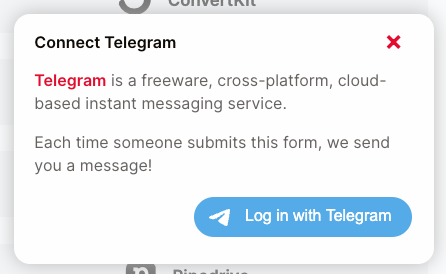
You will be redirected to login with your account. Please inform your phone and click next.
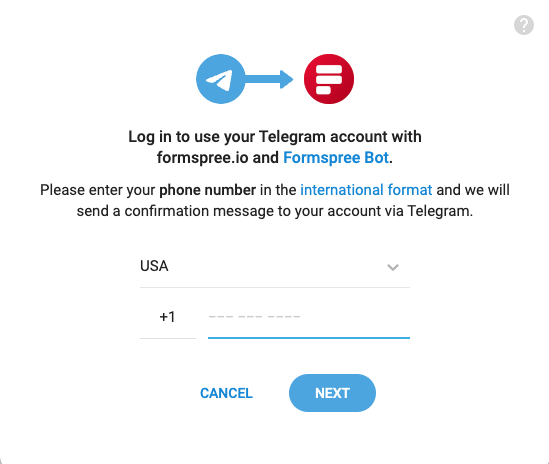
Telegram will send you a message asking to confirm your login in formspree.io. Please click on the Confirm button.
After you confirm the login the Formspree Bot will send you a message confirming that you have connected to the Telegram Plugin.

In the future, if you'd like to change the list or disable the Plugin entirely, you can do so by clicking on the Telegram button again to adjust its settings.