# Send Slack notifications
> Formspree Docs · Plugins · Updated February 28, 2026
#### Slack is a popular messaging service. When you connect your form to a Slack channel, each submission will create a new message.
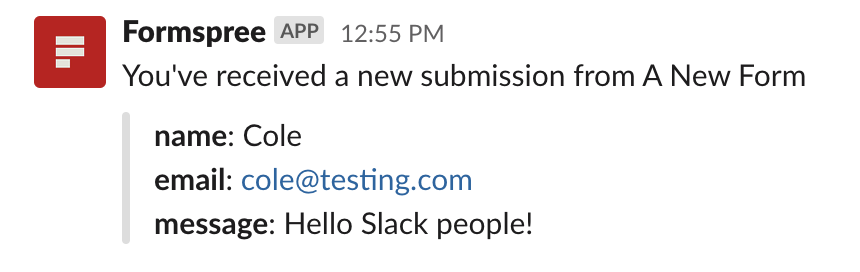
## Form Setup
Before using the Slack Plugin you must create a form to collect new submissions. Any HTML form will work. Additionally, you can use the following special named inputs to customize the card ticket.
### name="subject"
Adding an input named **"subject"** will set the subject of the message. When implementing your form you may choose to use text input and allow the user to provide their own subject line. For example:
```html
```
Alternatively, you may choose to use a select input, allowing your visitor to select from a list of predefined subjects. For example:
```html
```
## Connecting to Slack
Once you've created and configured a form, you can connect to Slack using the Slack Plugin. To do so, first, go to the Plugins tab of your form. Then click the Slack Plugin button.
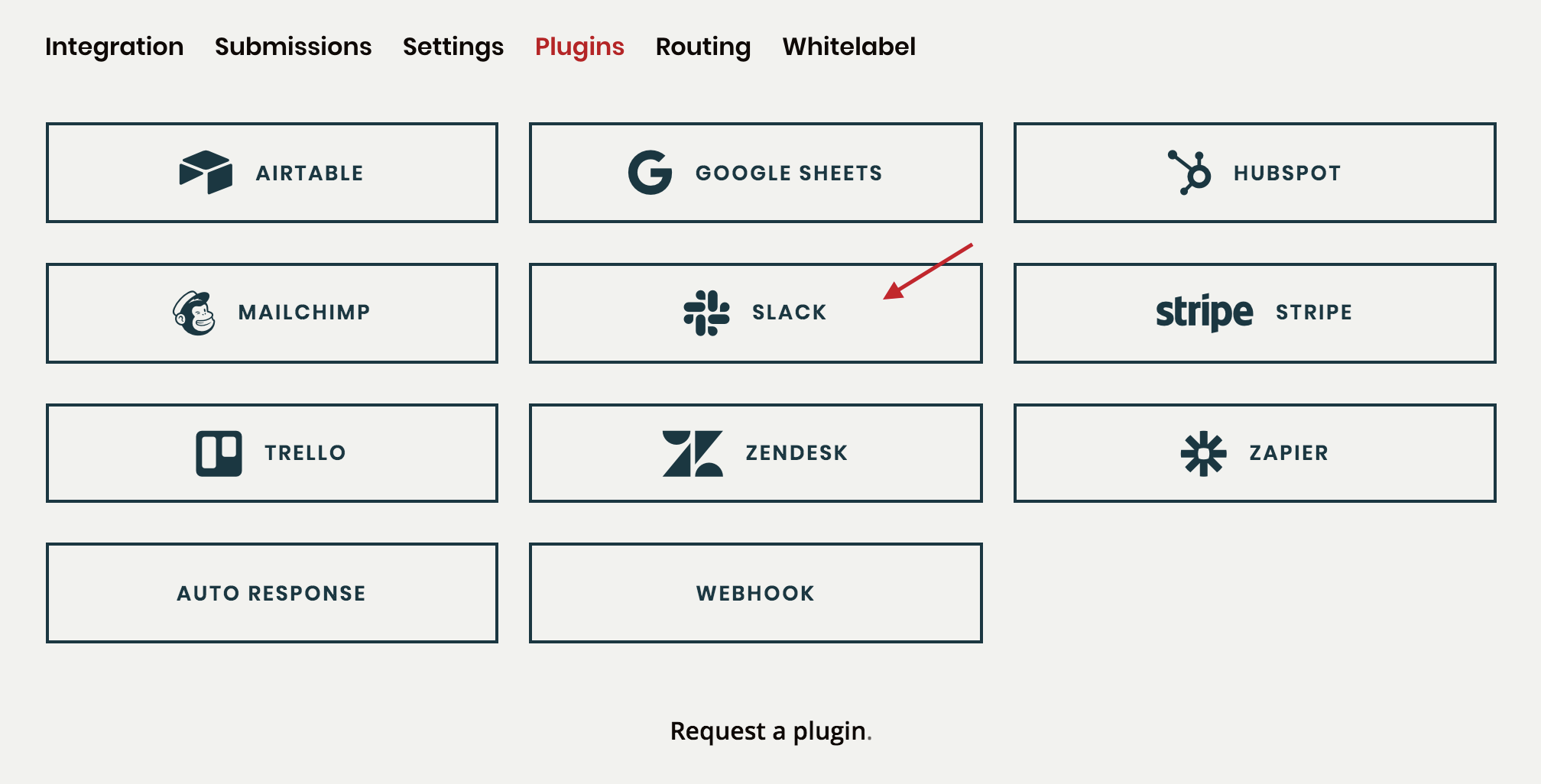
While signing in to your Slack account, you'll be prompted to select a channel where new messages will be posted.
In the future, if you'd like to change the channel, you'll need to disconnect and reconnect the plugin, selecting a different channel.