# Using hCaptcha
> Formspree Docs · Form and Project Settings · Updated November 18, 2025
The [hCaptcha](https://www.hcaptcha.com/) bot detection service is available on Formspree to protect your forms. hCaptcha is an alternative for Google reCAPTCHA with a focus on privacy, accessibility, and customization.
To get started, visit the [hCaptcha dashboard](https://dashboard.hcaptcha.com/overview). Add a site (or use an existing one) then add your domain. There are advanced features for enterprise and a few others available for free accounts. Configure as required and click **Save**.
Once you create it, you can see the list of available sites and the **Site key** just bellow the site name.
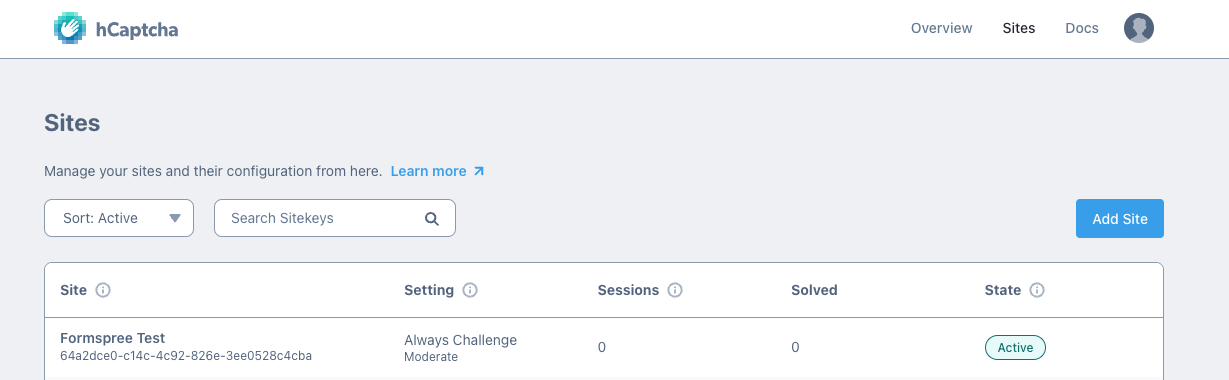
Copy the **Site key.** This key will be used to configure your HTML form code.
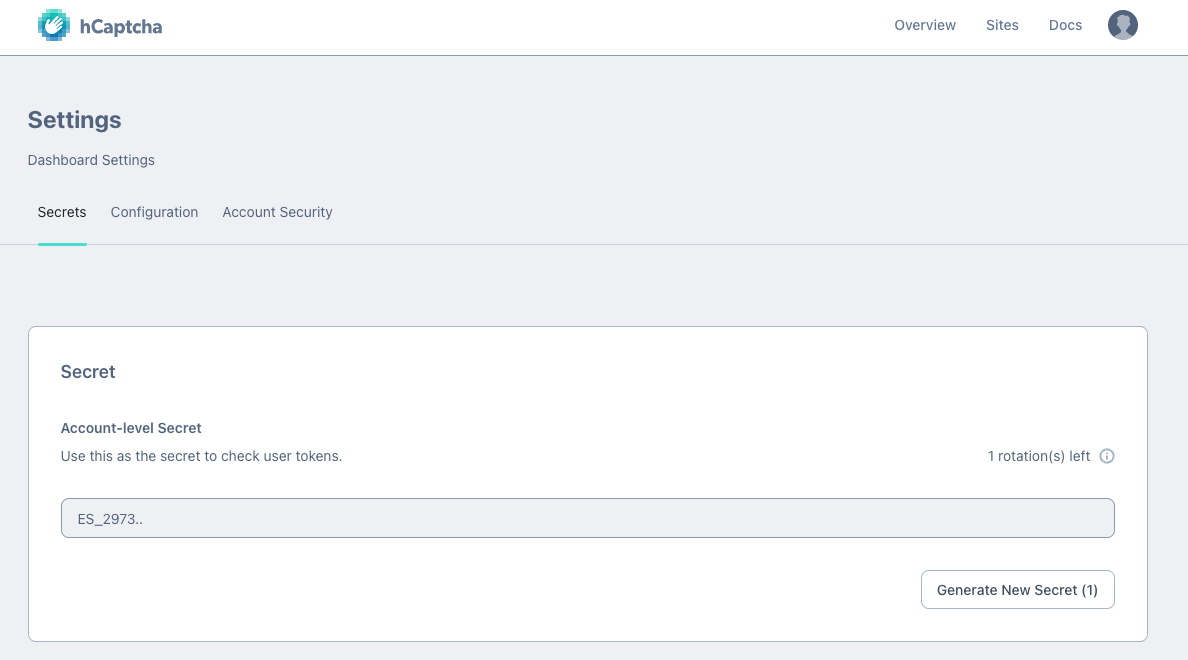
Now access your [account settings page](https://dashboard.hcaptcha.com/settings/secrets) and copy your **Account-level Secret**. This key will be used to configure your form in the Formspree settings.
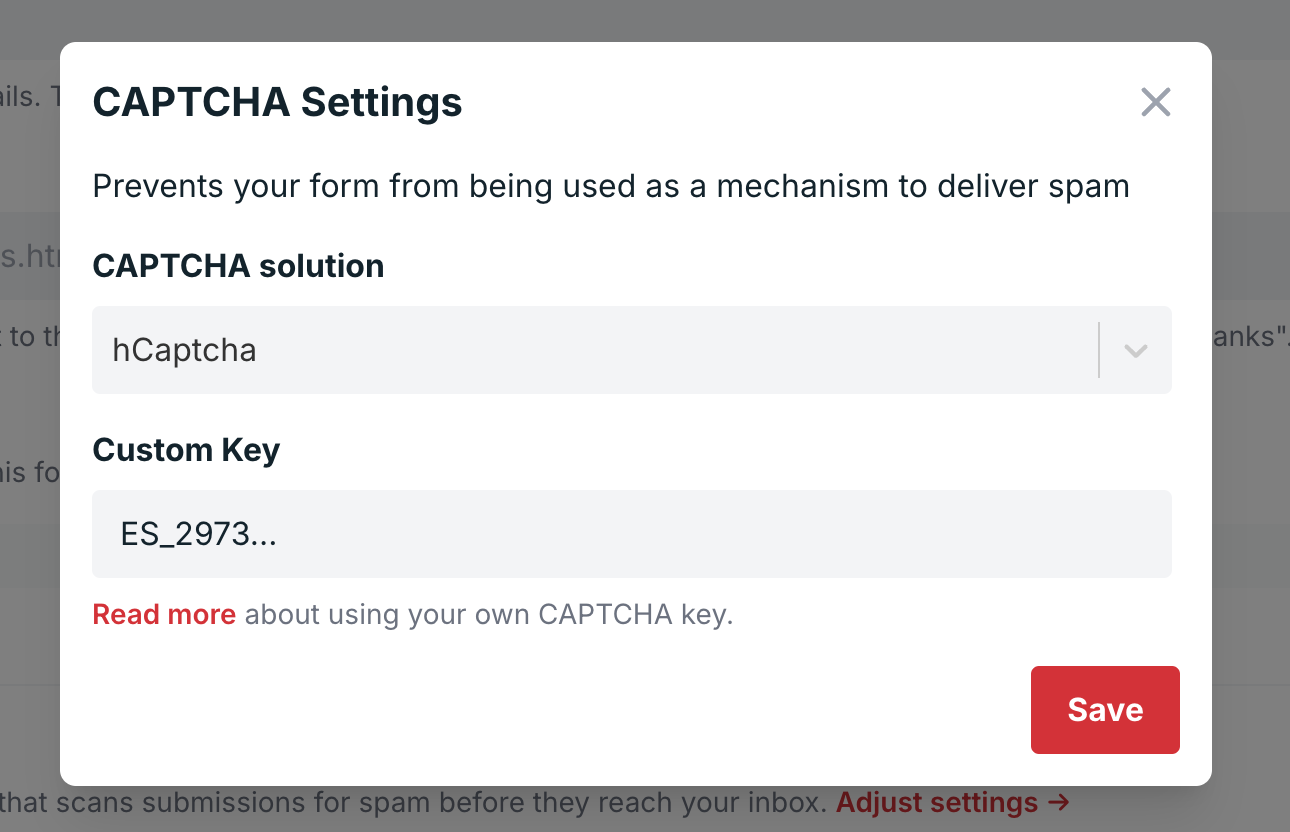
With both a **Site Key** and **Secret** in hand, visit the settings tab of your Formspree form, and make sure that CAPTCHA is enabled.

Click on **Adjust settings** and paste your **Secret Key**. Click **Save**.
The final step is to add **hCaptcha** to your form code. You must paste your **Site key** in a div component. In a standard form setup, you can add it like so:
```html
hCaptcha Demo
```
Alternatively, you can use AJAX to submit your form. Check the example below to learn how to submit forms with jQuery using hCaptcha:
```html
hCaptcha Demo
```
If you are developing locally, it is important to know that [you can not run hCaptcha on apps hosted on local host](https://docs.hcaptcha.com/#local-development) (127.0.0.1). You will need to configure a host entry to circumvent this, or us an HTTP tunneling service like ngrok.